Edit User
How to edit a user
On the user management page
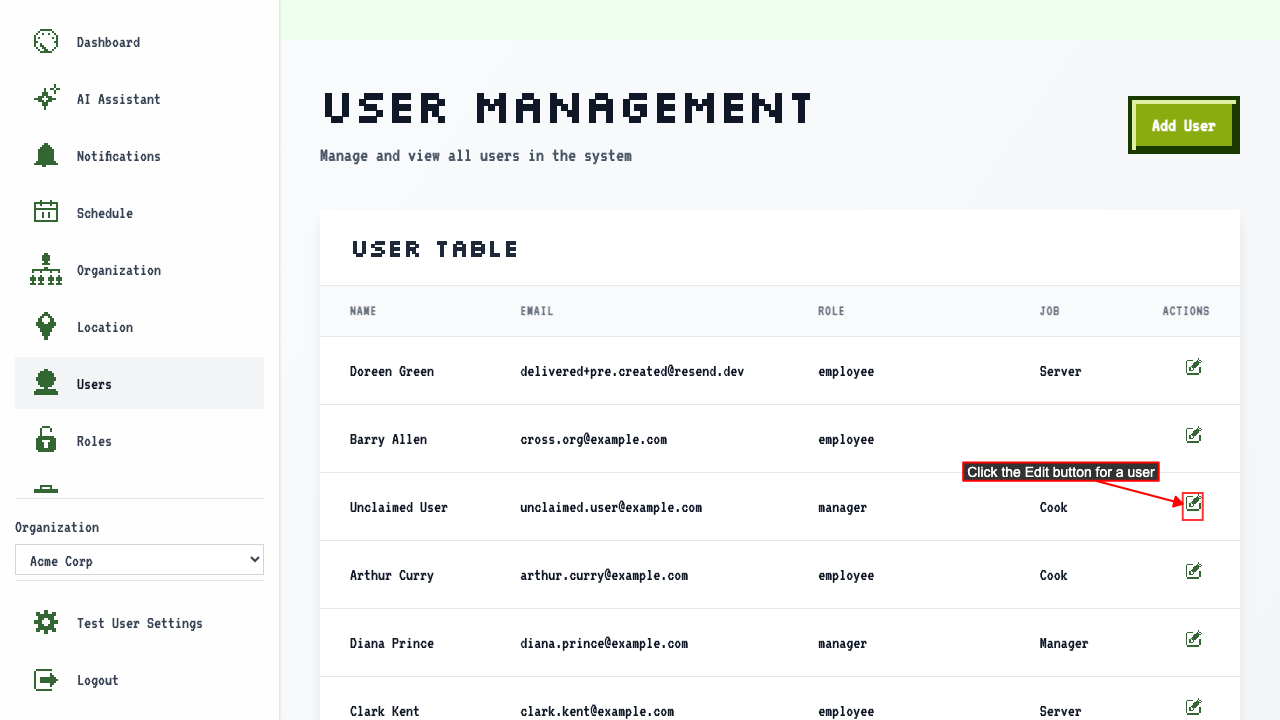
Click the Edit button for a user to navigate to the edit user page.
 There should be an edit user form where you can change some the user's details.
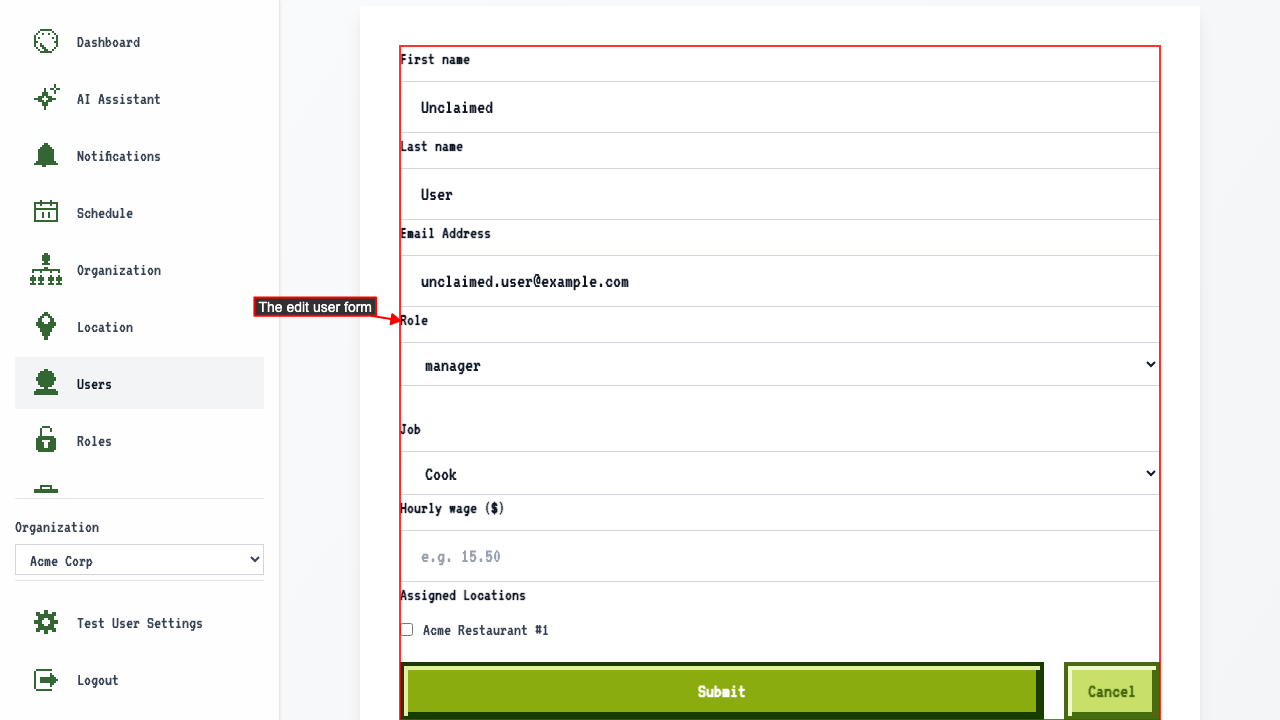
You won't be able to change the user's name once created. The user will need to claim the account to change it.
You can change:
- Role
- Job
- Hourly wage
- Assigned Locations
- email address (but only if the user hasn't claimed their account yet)
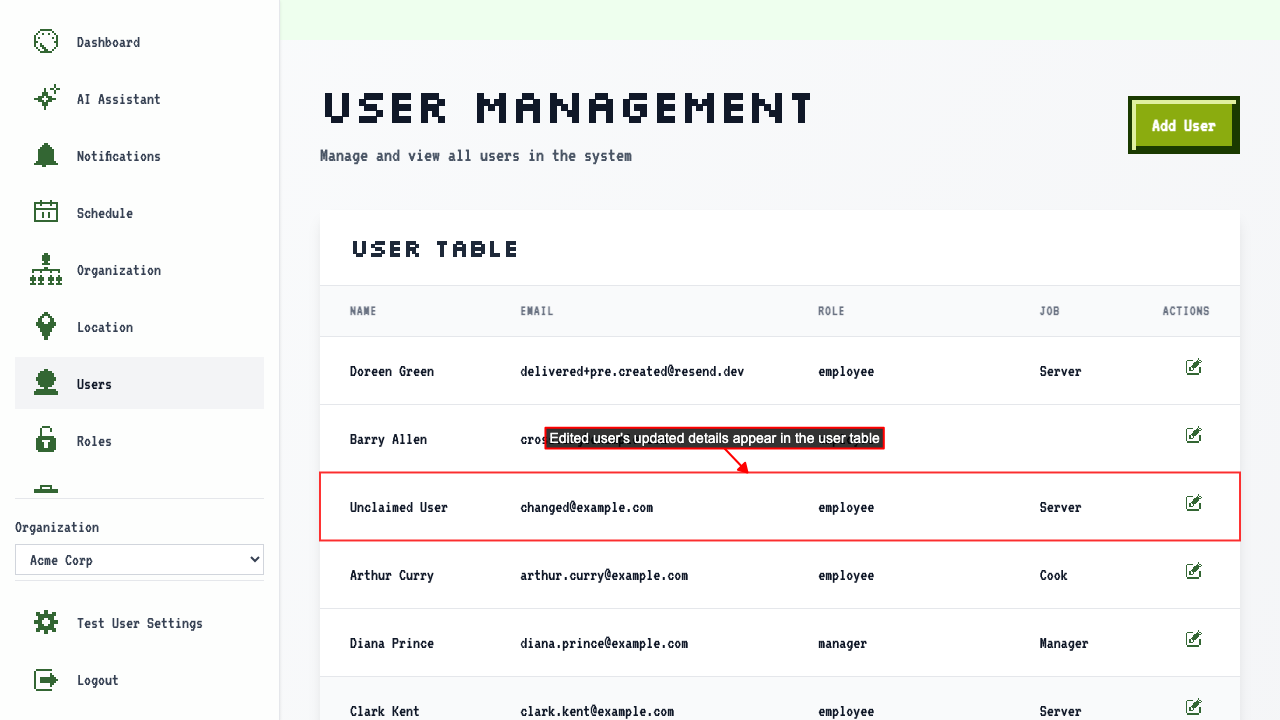
After making changes, submit the edit user form.
This will redirect to the user management page where you can see the user's details have been updated.
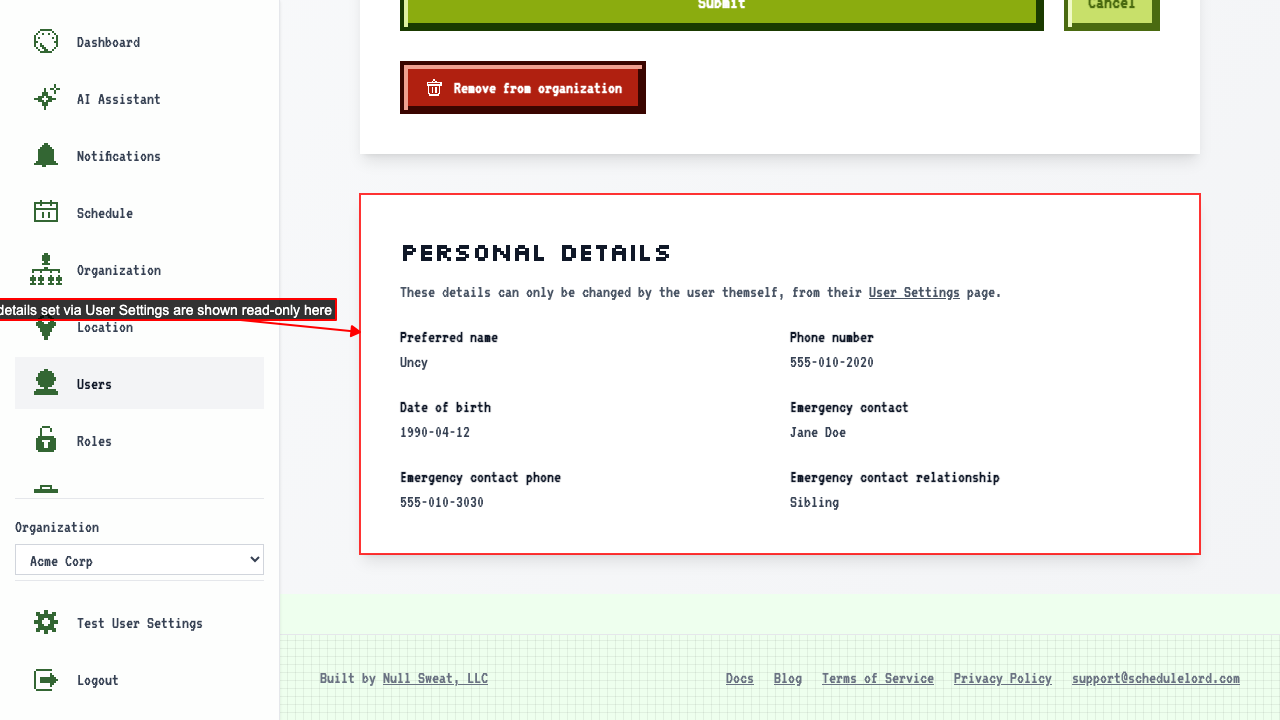
Edit User page shows a user's personal details set on their User Settings page
When viewing the edit page for that user
the Personal Details section shows the values they set on their User Settings page.
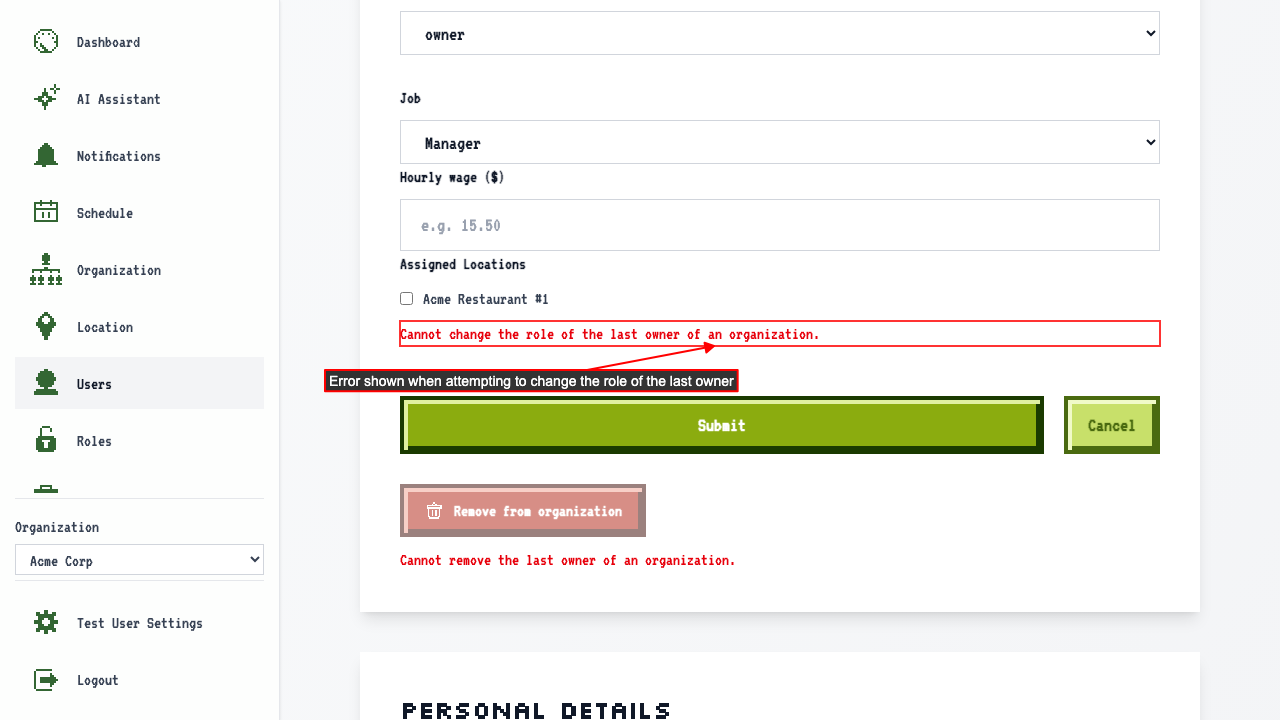
Unable to change the role of the last owner of an organization
When viewing the edit page for the only owner of an organization,
changing the role to a non-owner role and submitting shows an error.
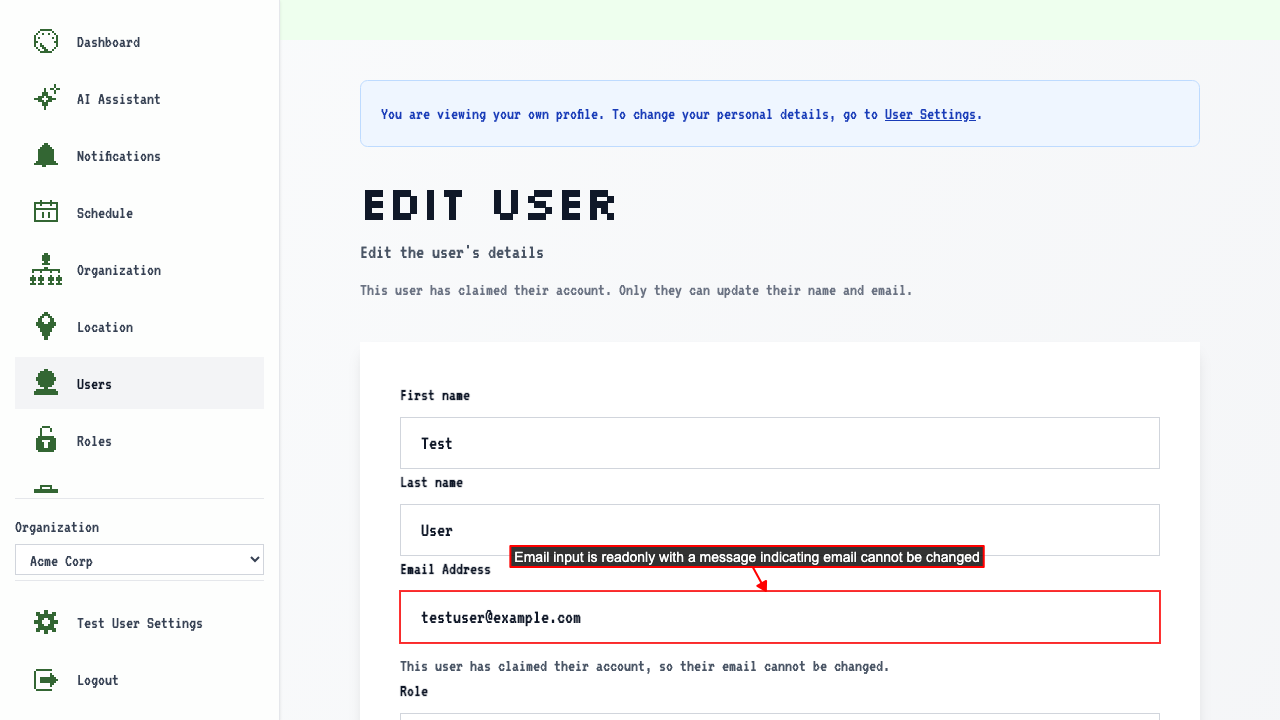
Unable to edit a user's email after they have claimed their account
When viewing the edit page for a user that has claimed their account,
the email input should be readonly and have a message indicating that the email cannot be changed.
Viewing your own edit page shows a banner linking to User Settings
When a logged-in user navigates to their own edit page within an org,
a banner is shown explaining they are viewing their own profile.
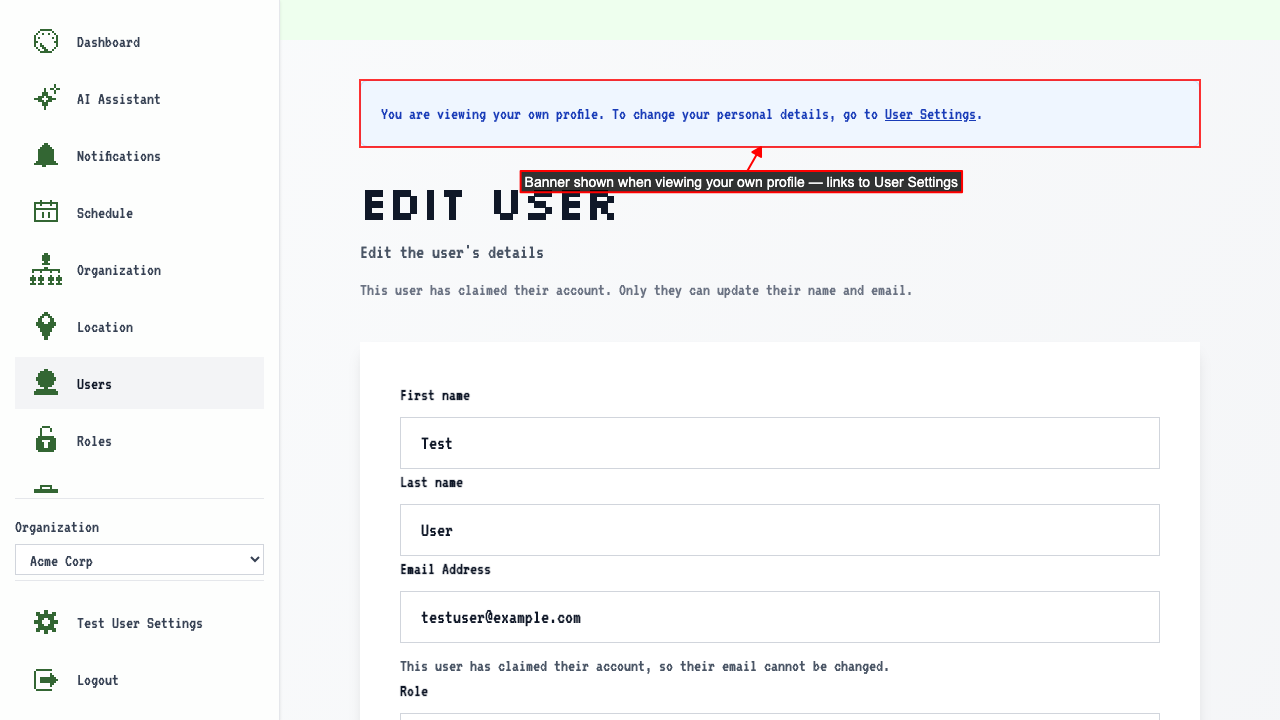 The banner contains a link to User Settings where they can update their personal details.