Signing In with a Passkey
How to sign in with a passkey
Go to the login page.
Click Login with passkey.
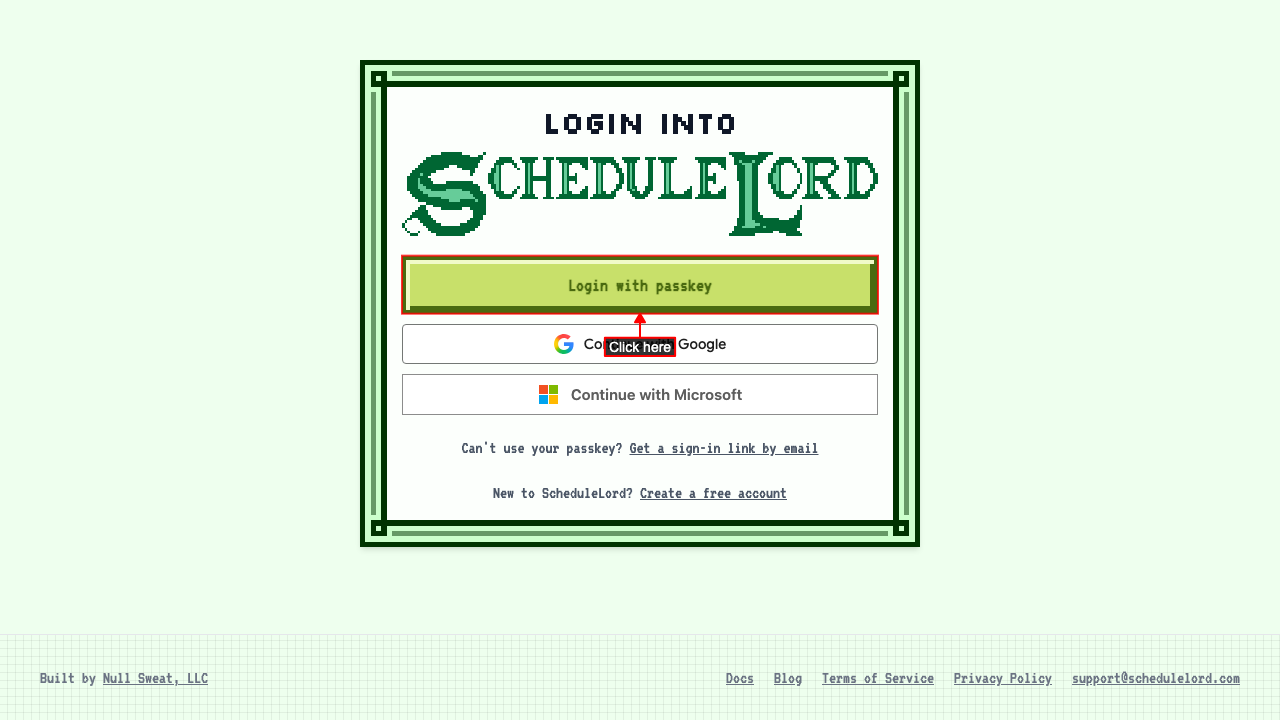 Signing in takes you to your dashboard, or to the AI Assistant page if you haven't finished setting up your account.
If you're already signed in
Opening the login page
Open the login page while you're signed in. Instead of asking you to sign in, it shows Continue to App. Click it to go to the app.
Problems while signing in
Your passkey isn't recognized
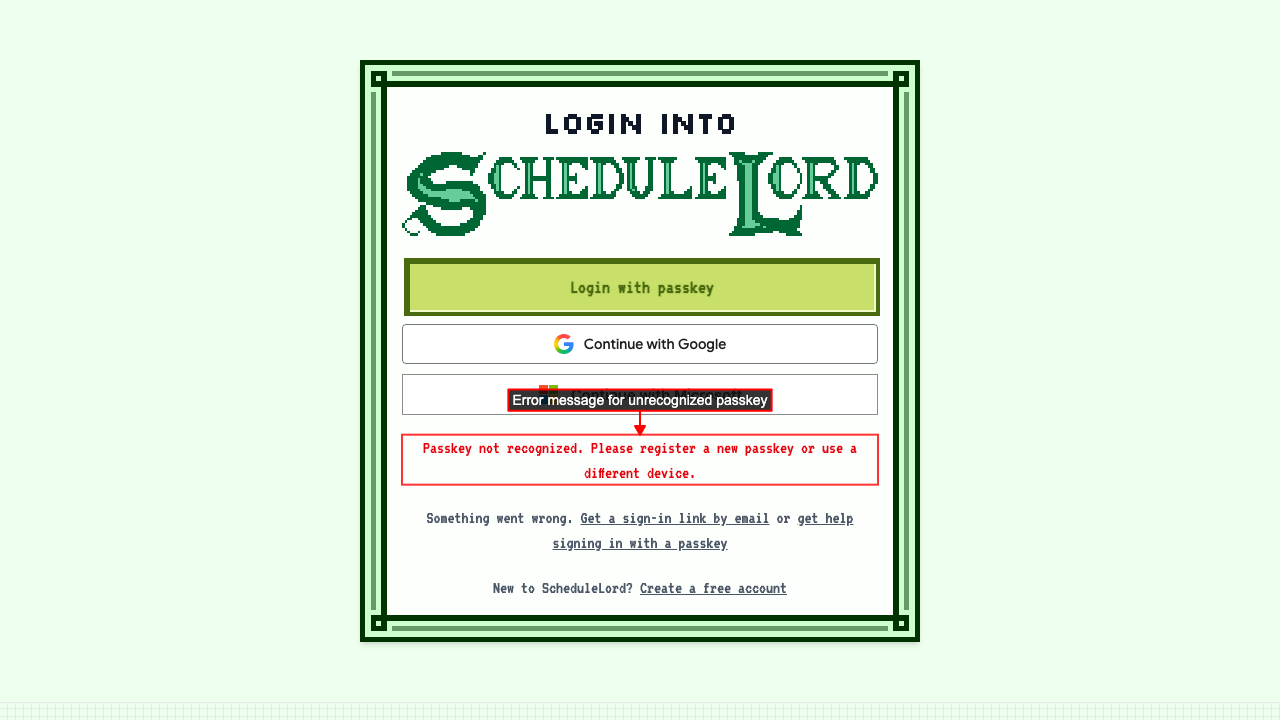
Click Login with passkey and choose a passkey that isn't registered with ScheduleLord.
You'll see an error saying the passkey isn't recognized. Try a different passkey or device, or get a sign-in link by email.
Using your phone's passkey on a computer
Go to the login page and click Login with passkey. If your passkey is saved on your phone, your browser shows a QR code to scan with it. Your phone and computer check that they're near each other over Bluetooth, so both need Bluetooth turned on. Many desktop computers don't have Bluetooth, and the sign-in times out after you scan. See Microsoft's guide to passkeys for more about using a phone on Windows.
If the sign-in is cancelled or times out, an error message explains what to check.
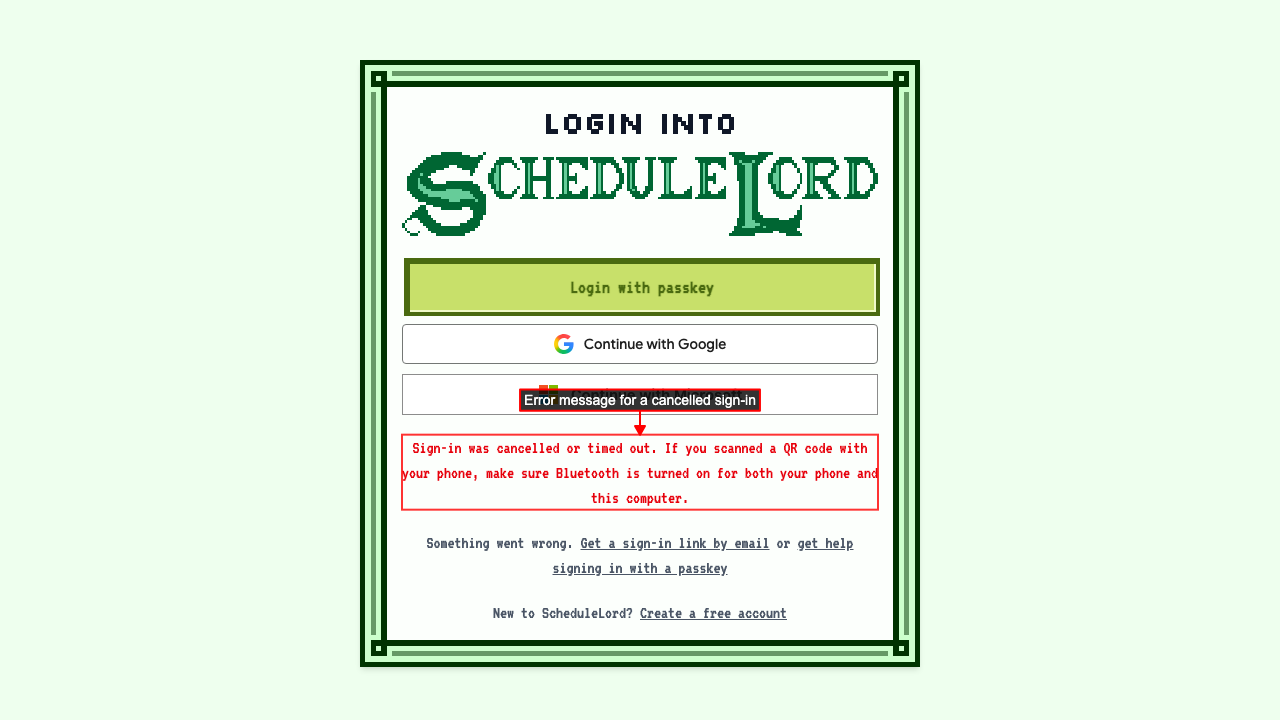
Instead of using your phone, click Get a sign-in link by email to get a sign-in link, then add a passkey on this computer, for example with Windows Hello. Next time you can sign in without your phone. See Recovering Your Account for how to add a passkey.
Getting back in with a sign-in link
If signing in with a passkey fails, for example because you never set one up on this device, the login page suggests getting a sign-in link by email. Click Get a sign-in link by email, enter your email, and click Email me a sign-in link. Open the link from the email. It signs you into your existing account, so nothing is lost or duplicated.