Adding an Employee
How to add a new employee
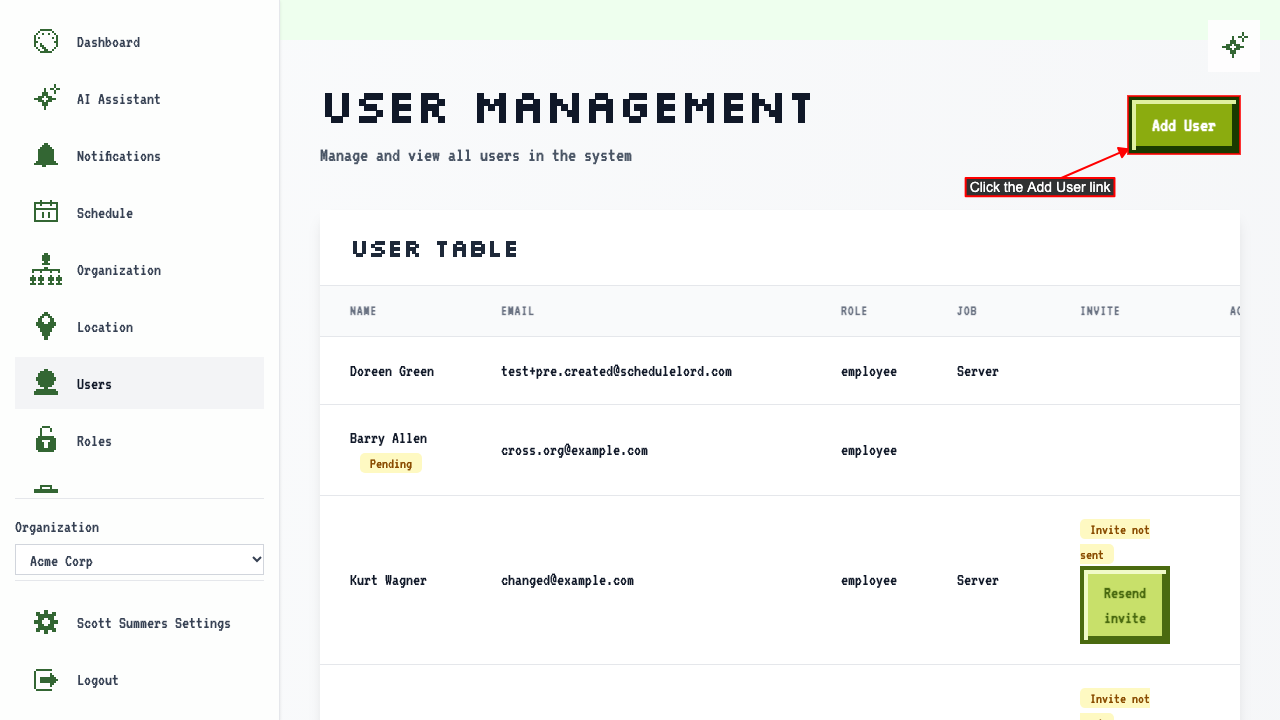
Start on the Users page.
Click 'Add User' to open the new employee form.
 The new user form opens.
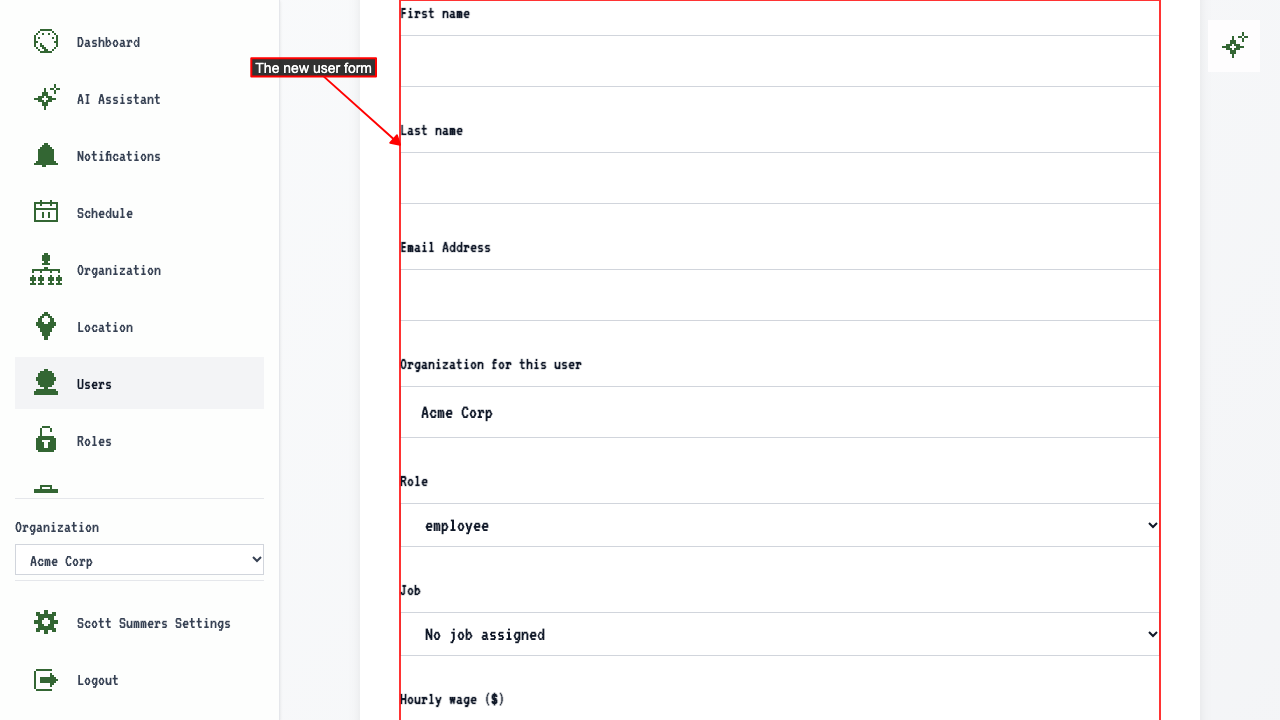 The form will contain fields for:
- First name
- Last name
- Email address
- Organization
- Role
- Job
- Hourly wage
- Assigned Locations
After entering those details, submit the new user form.
You're taken to the Users page, where your new user has been added.
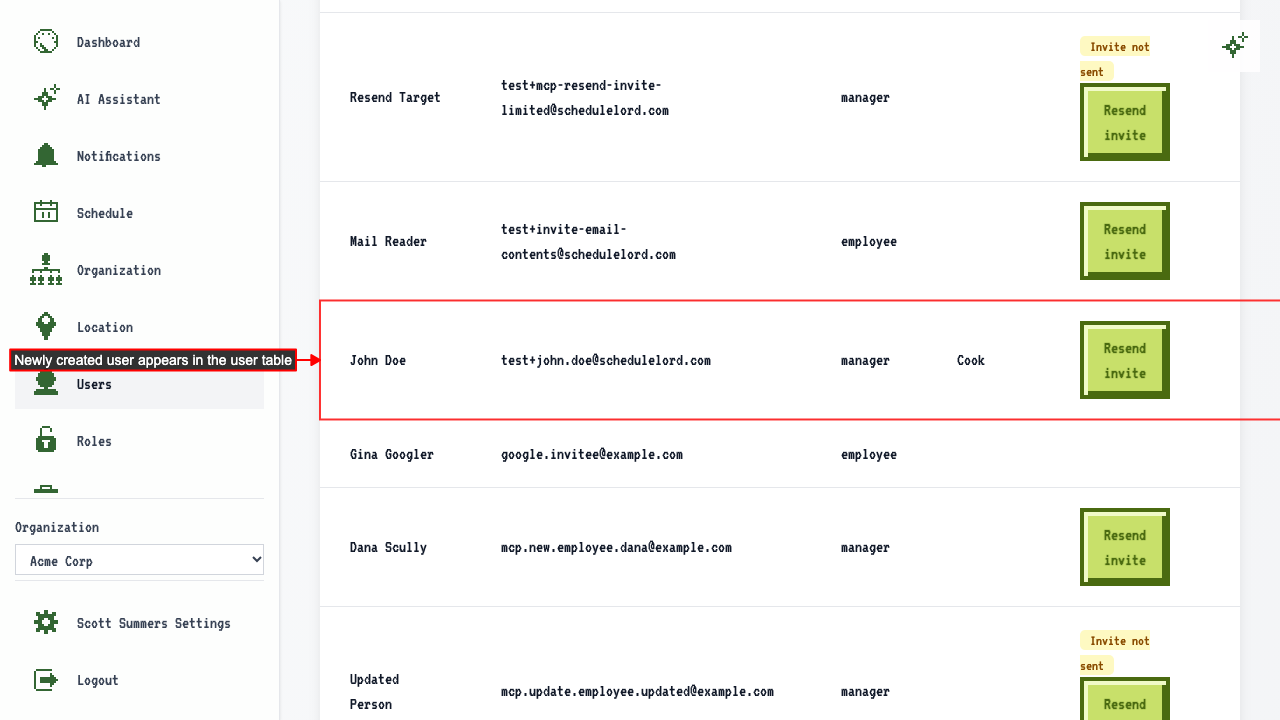 Their assigned locations and hourly wage are saved, and show on their edit page.
How someone without an account is invited
Add someone who doesn't have a ScheduleLord account yet, the same way as any other employee. They're emailed an invitation to join your organization, with a button to create their account. The link only works for the email address you entered. When they open the link and register a passkey, their account is created and they land in your organization. There's nothing else for them to accept.
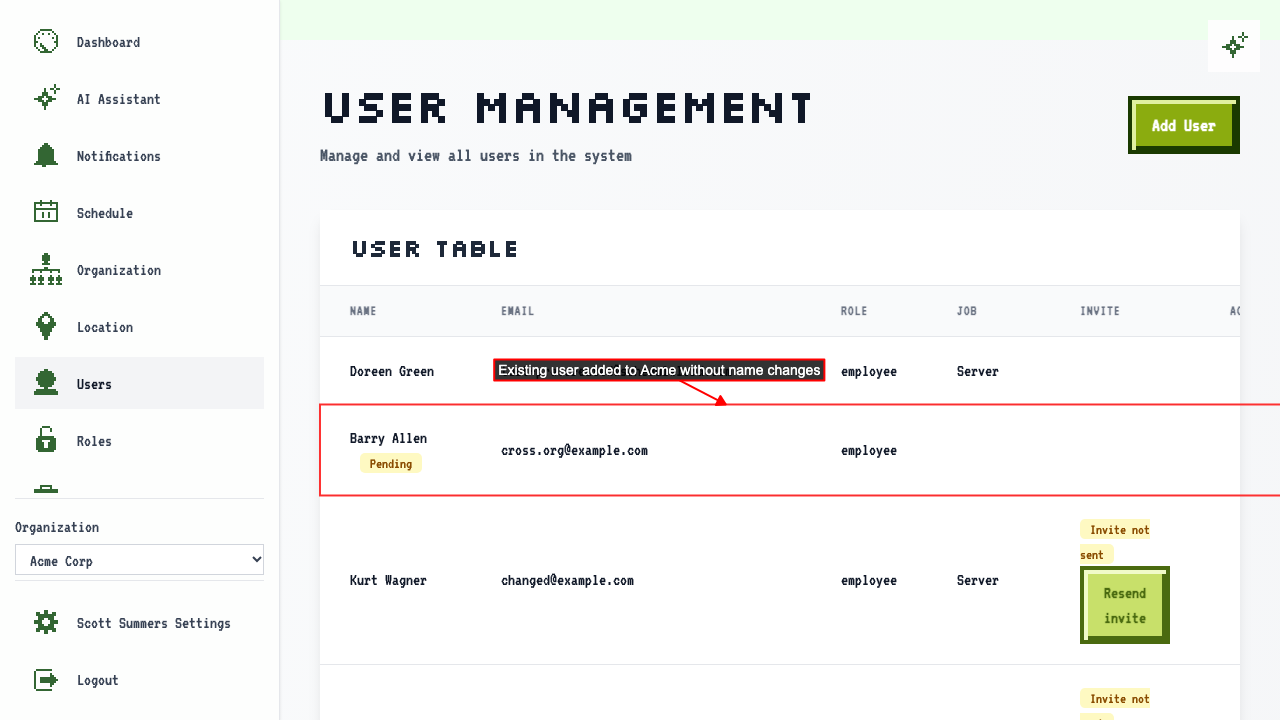
How to add someone who already uses ScheduleLord
Start on the Users page.
Click 'Add User' to open the new employee form.
Enter the new user's name and email for an existing user.
Select the role.
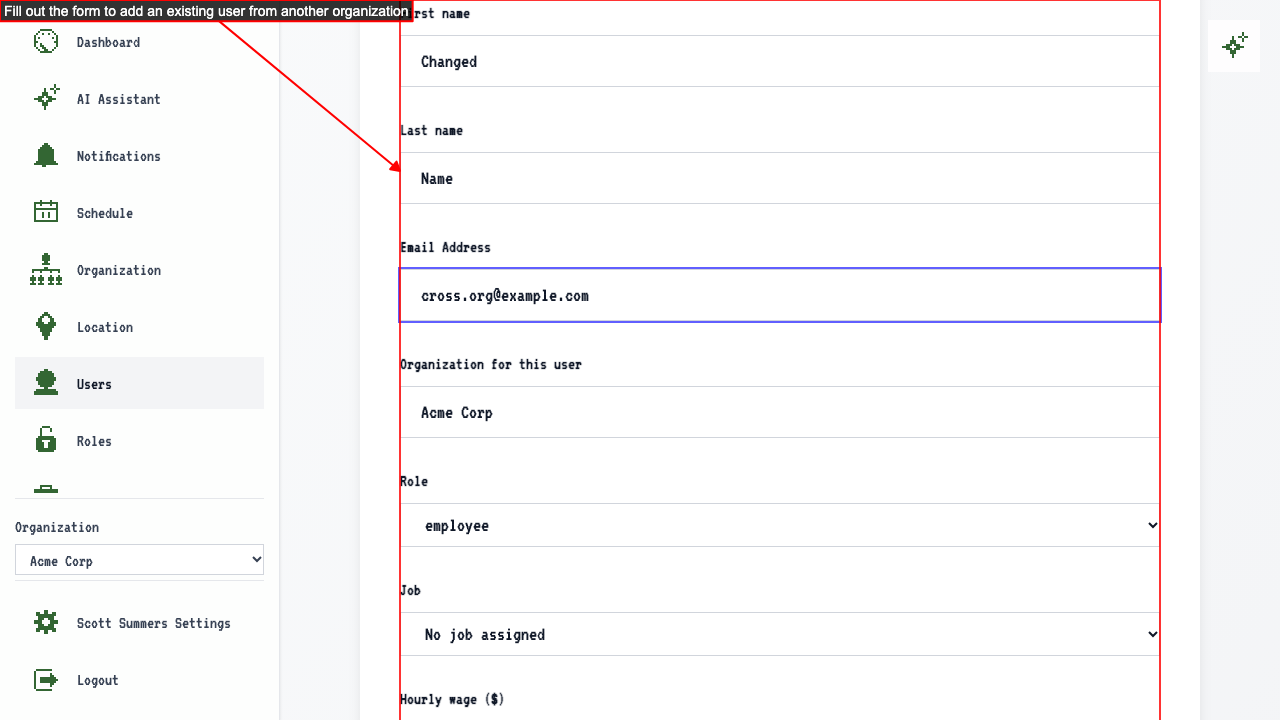 Submit the form.
They keep the name on their existing account, so the name you typed isn't used. They're sent an invite and a notification in ScheduleLord, and they choose whether to join from their dashboard. Until they accept, they're marked Pending on your Users page. See Pending Invites.