Linking an Employee to an Existing Account
How to link an employee to an existing account, and undo it
Sometimes you add an employee by hand, and the person already has a ScheduleLord account under another email. You can link the two, so their role, shifts, and time off carry over to the account they actually use.
Start on the Users page and open the edit page for the employee you added. Change their email to the email address of their existing account, then submit the form.
ScheduleLord notices that the email already belongs to an account and asks whether you want to link them. The message explains that they'll be invited, what moves over once they accept, and that you can undo the link for 7 days after.
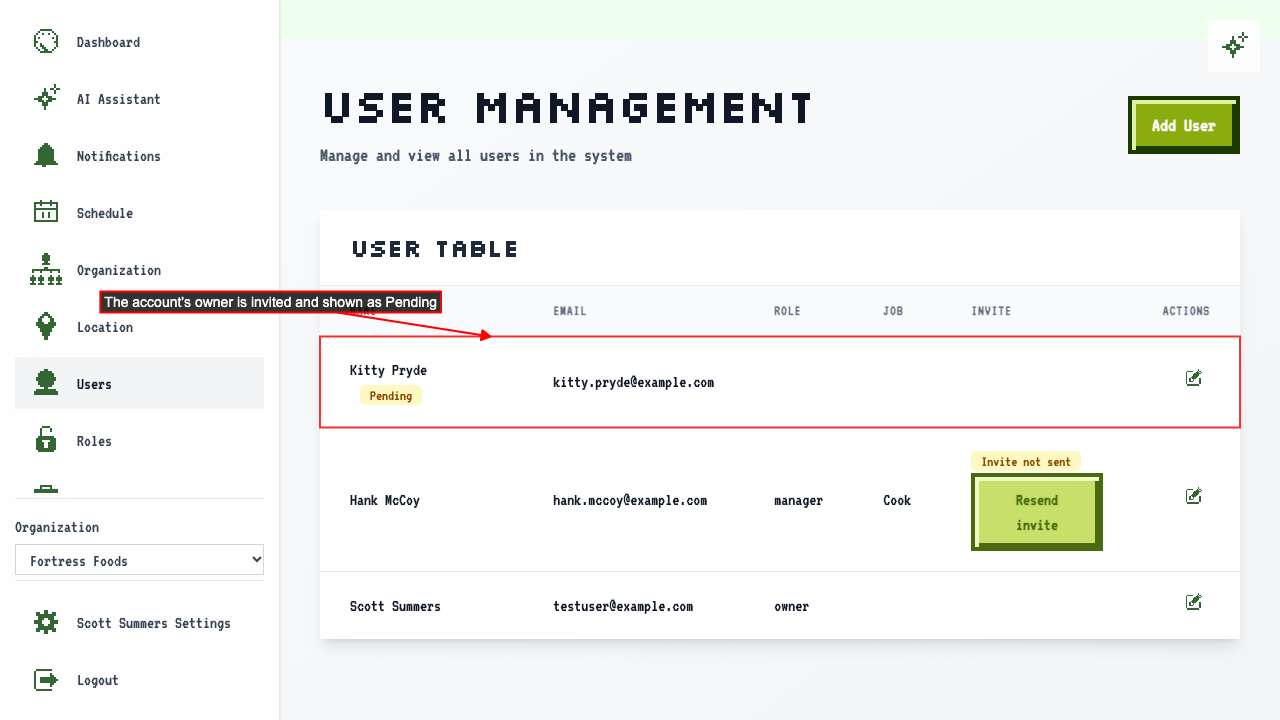
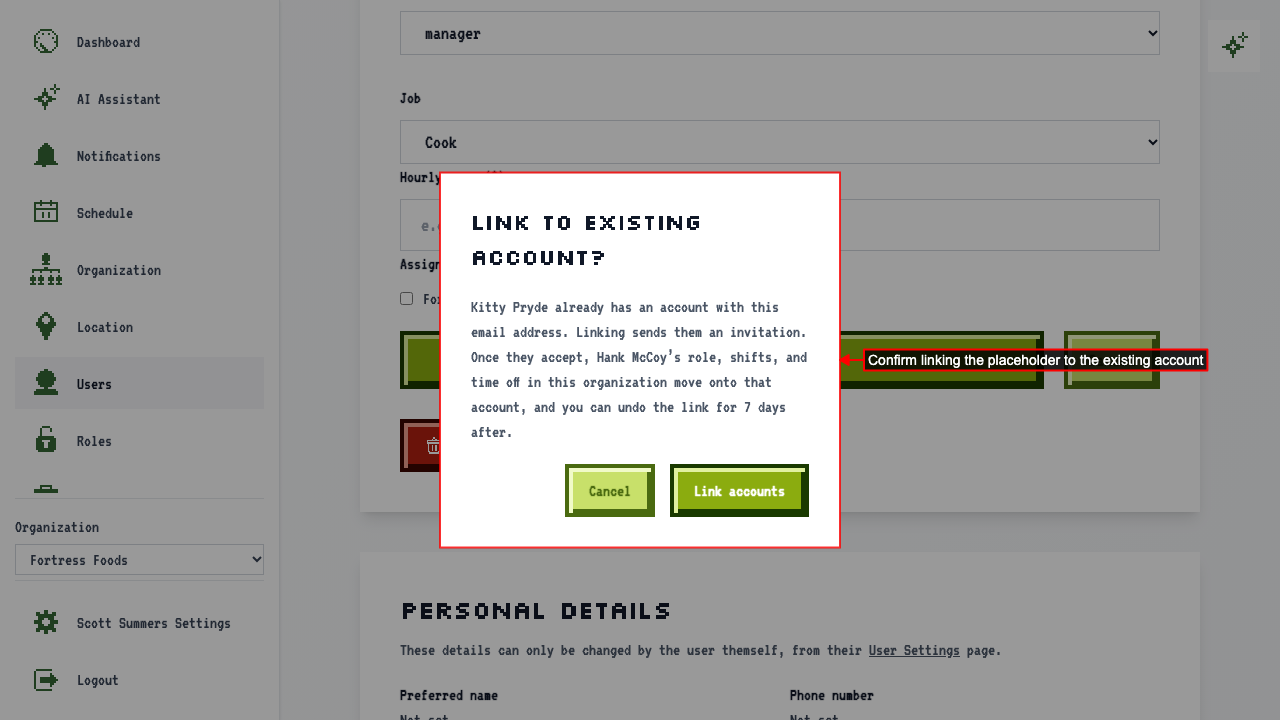 Click Link accounts. The owner of the existing account is sent an invitation to your organization and listed as Pending on your Users page. Until they accept, the employee you added keeps their role and job. If they decline, nothing changes.
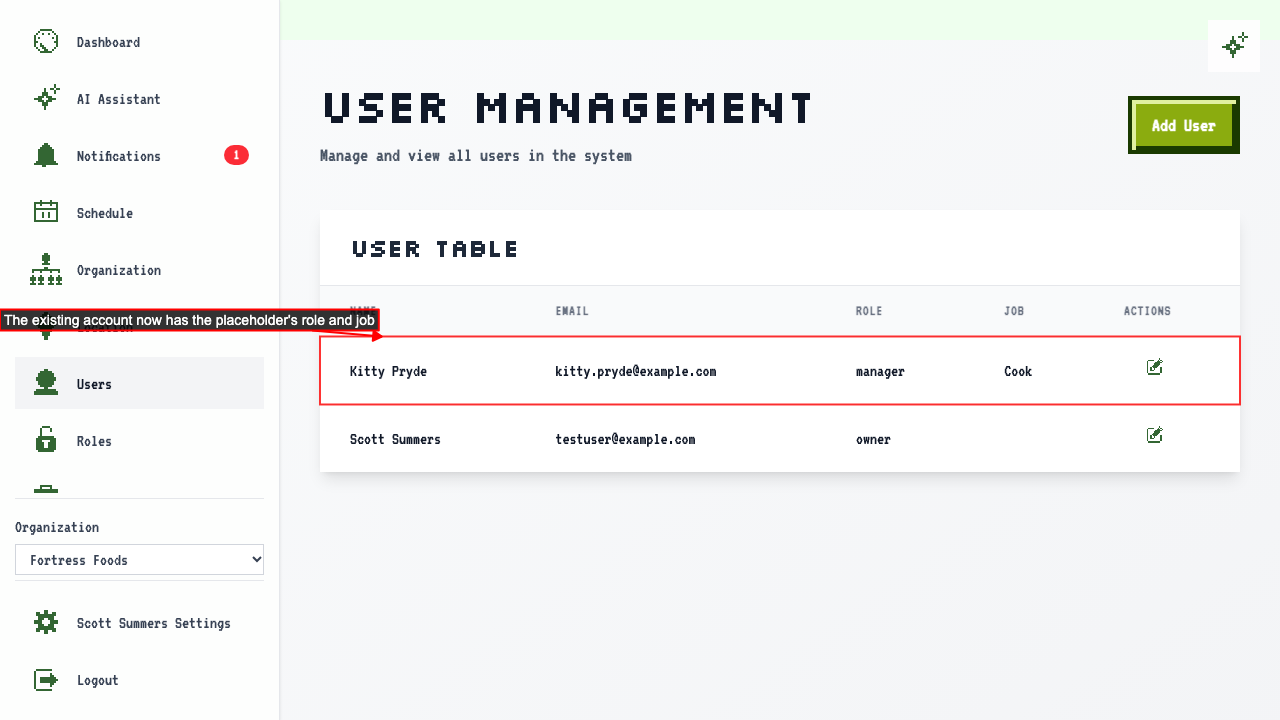
 Once they accept, the role and job you set up for the employee move onto their account.
The Users page now lists the existing account with that role and job, and the employee you added by hand is no longer listed.
Undoing a link
If you linked the wrong accounts, you can undo it for 7 days after the invitation is accepted. Open the linked account's edit page, where a notice offers to unlink it.
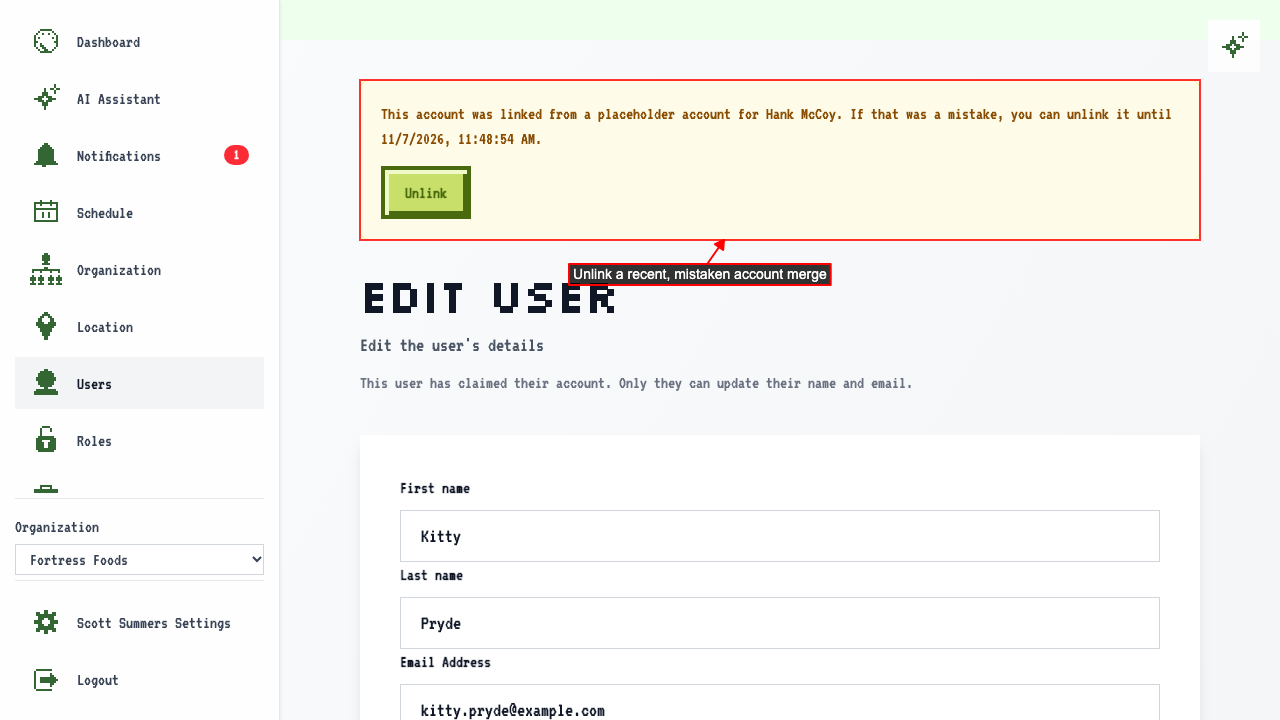 Click Unlink. The employee you added is back on your Users page, and the existing account is removed from your organization.
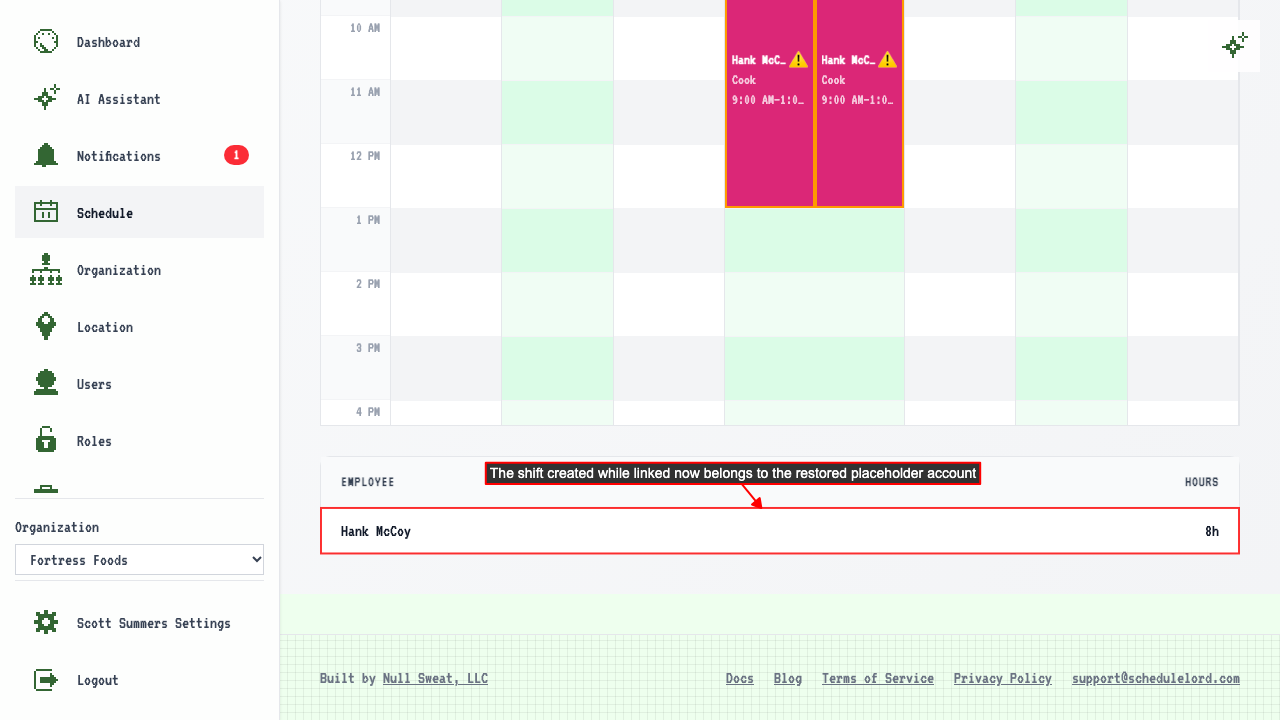
Shifts you scheduled for the account while it was linked go back to the employee you added.