Passkeys
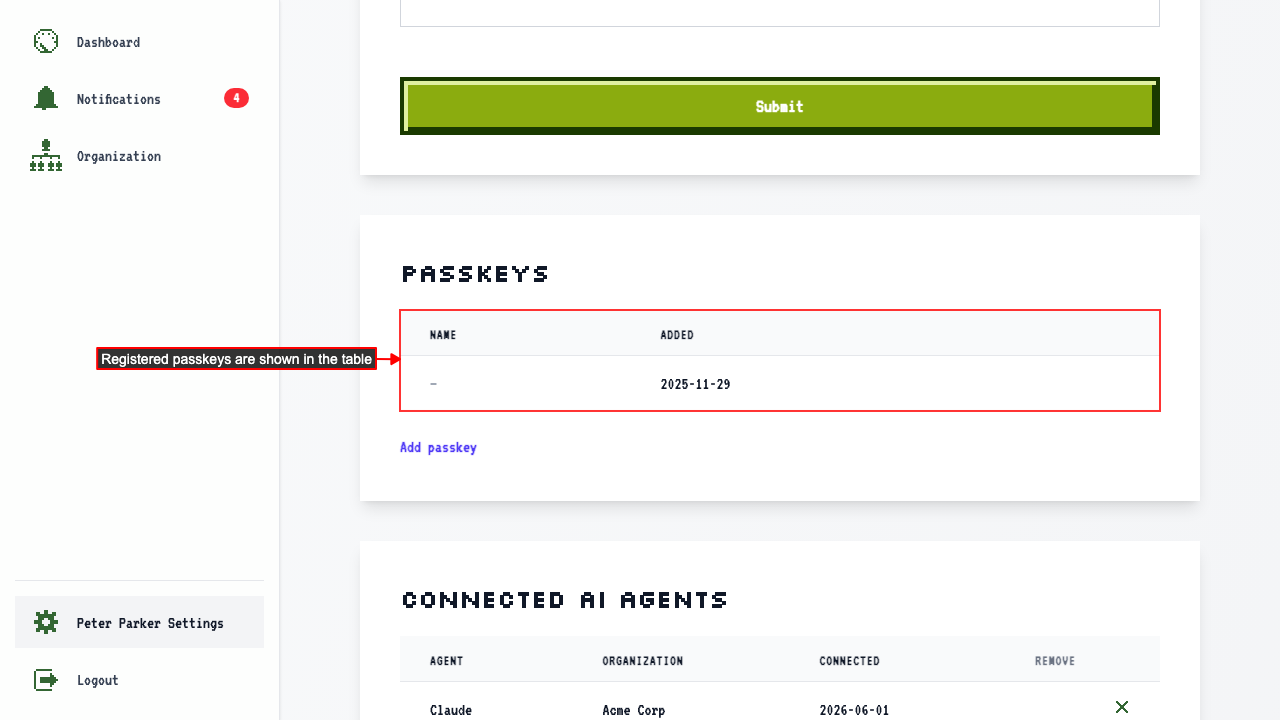
User settings page shows registered passkeys
When on the user settings page
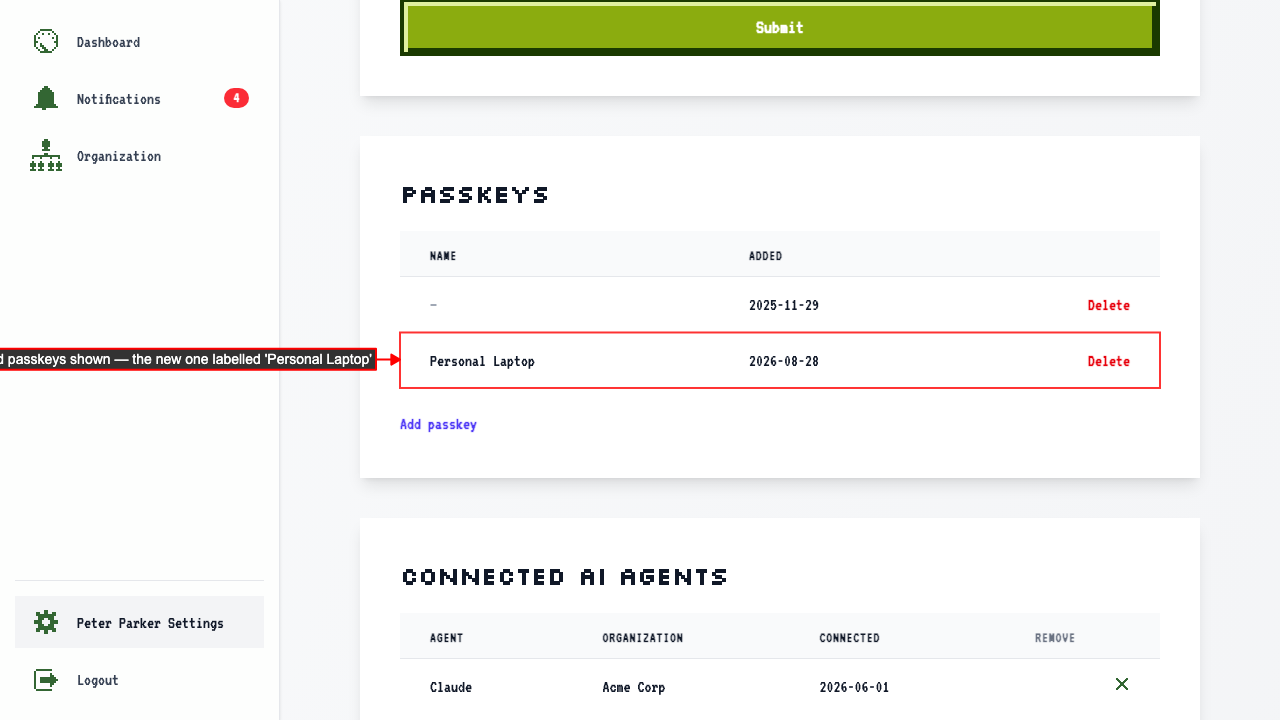
the Passkeys section shows all passkeys registered to your account.
How to delete a passkey
When on the user settings page
Each passkey row has a Delete button.
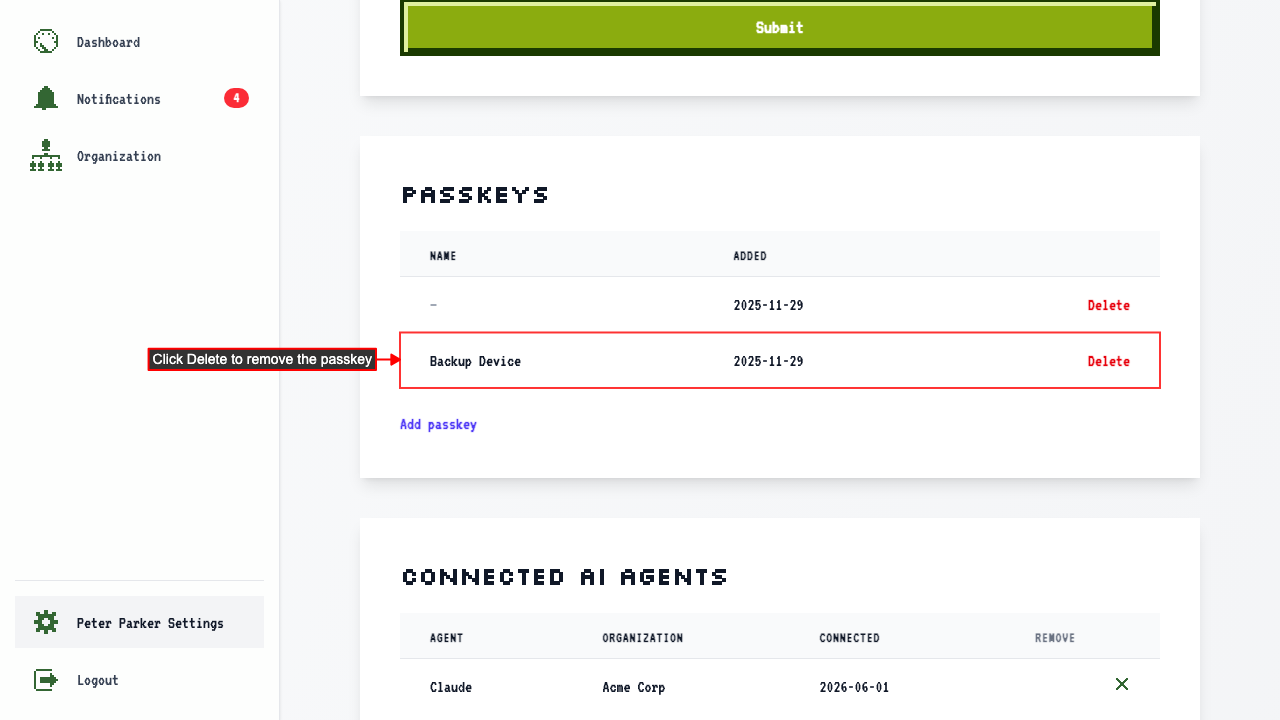 Clicking Delete removes the passkey from the table.
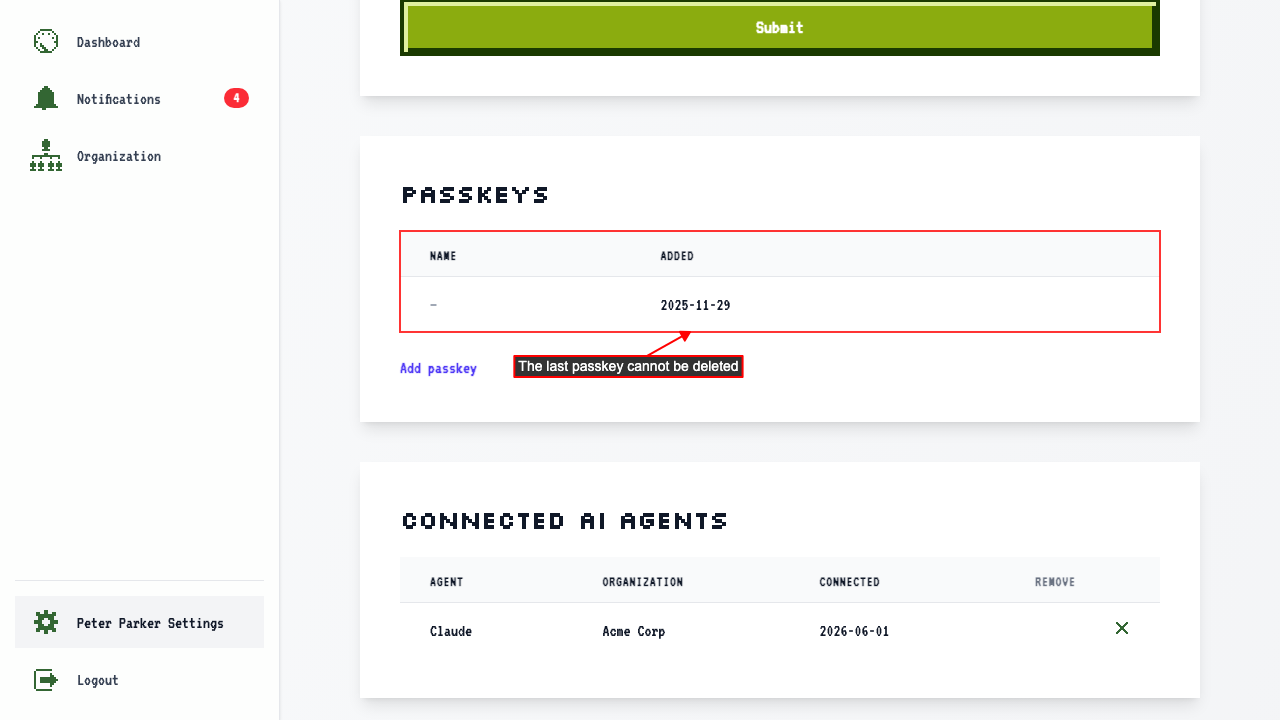
The last remaining passkey has no Delete button.
Clicking Delete removes the passkey from the table.
The last remaining passkey has no Delete button.
How to add additional passkeys
When on the user settings page,
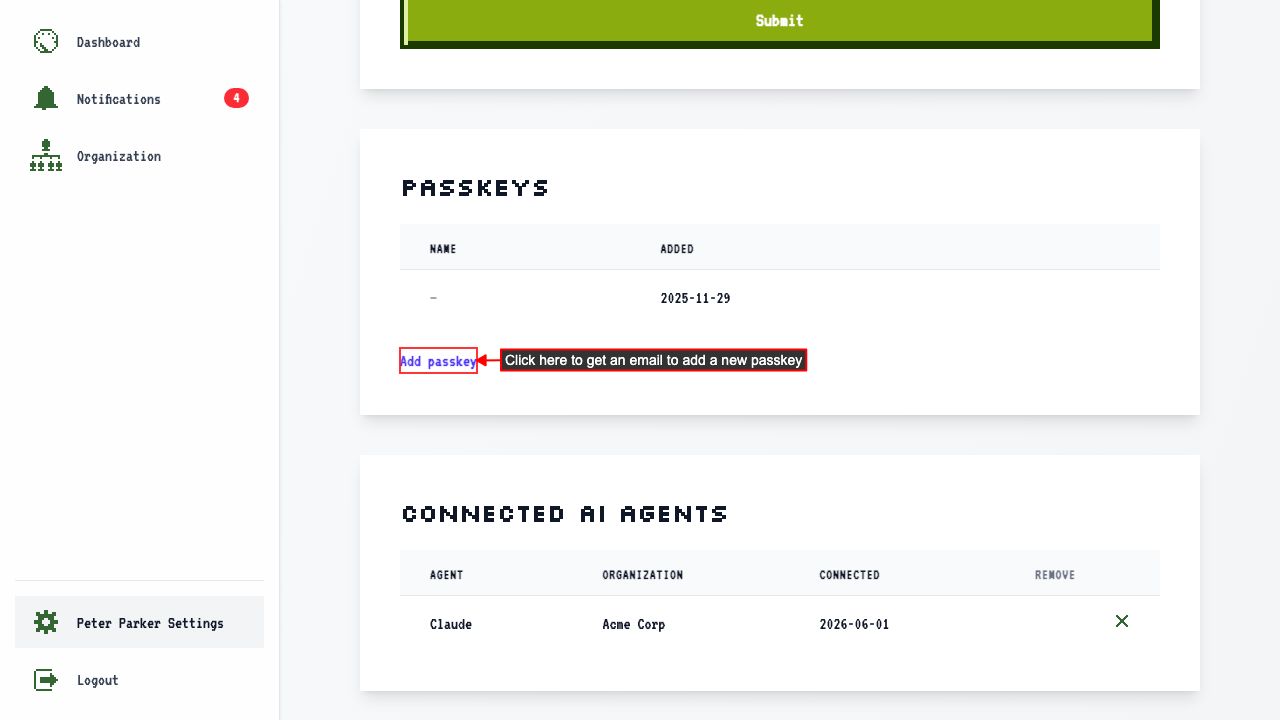
clicking 'Add passkey' sends a registration email.
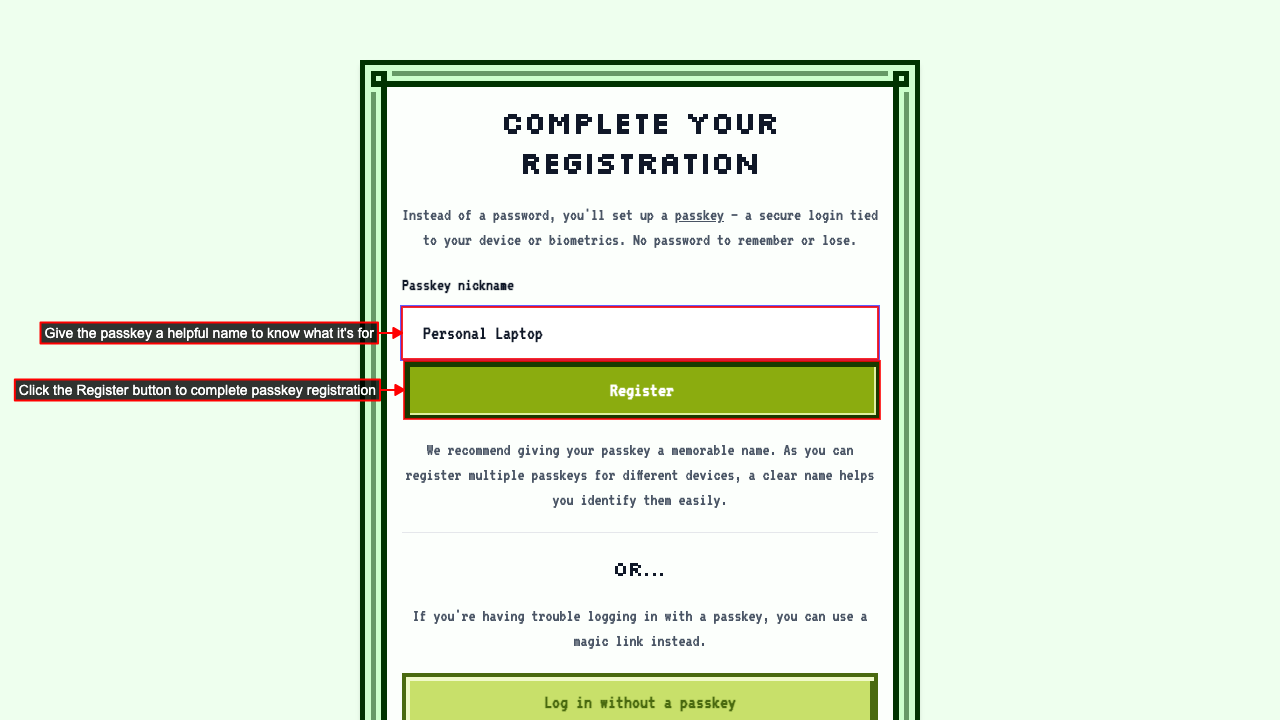
 Following the link in the email navigates to the passkey registration page.
On the registration page, give the passkey a nickname to identify it later.
Clicking Register adds the new passkey to your account.
Following the link in the email navigates to the passkey registration page.
On the registration page, give the passkey a nickname to identify it later.
Clicking Register adds the new passkey to your account.
 You're logged in automatically with the new passkey.
The new passkey now appears in the Passkeys table with its nickname.
You're logged in automatically with the new passkey.
The new passkey now appears in the Passkeys table with its nickname.
Requesting a new passkey registration email invalidates previous tokens
When on the user settings page
Clicking Add passkey sends the first registration email.
If you refresh or comeback to this page, you can clicking the Add passkey button again and send a second email and invalidates the first token.
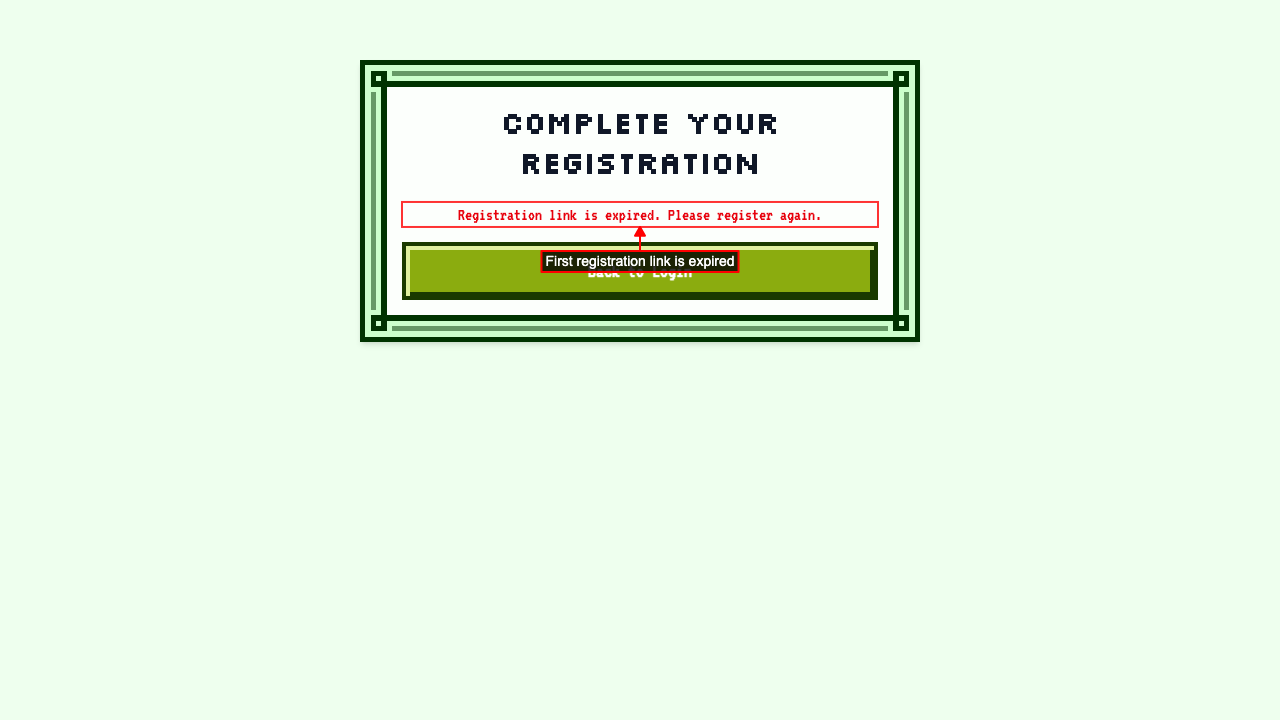
The first registration link is now expired and cannot be used.
 The second registration link is still valid.