Finding the AI Assistant
How to open the AI Assistant page
New to ScheduleLord? Until you finish setting up your account, signing in brings you straight to this page, and the assistant walks you through setup.
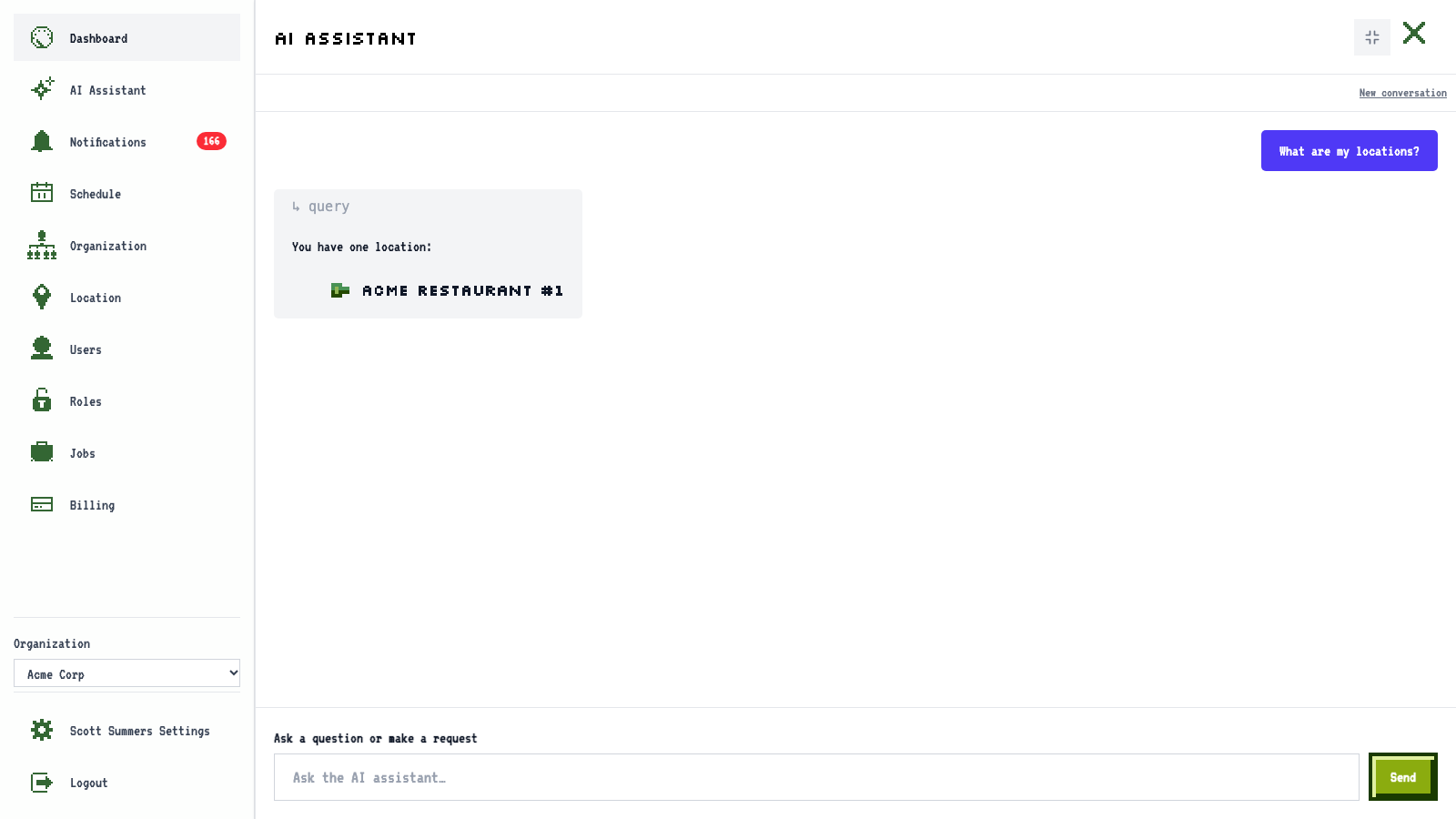
Click AI Assistant in the sidebar.
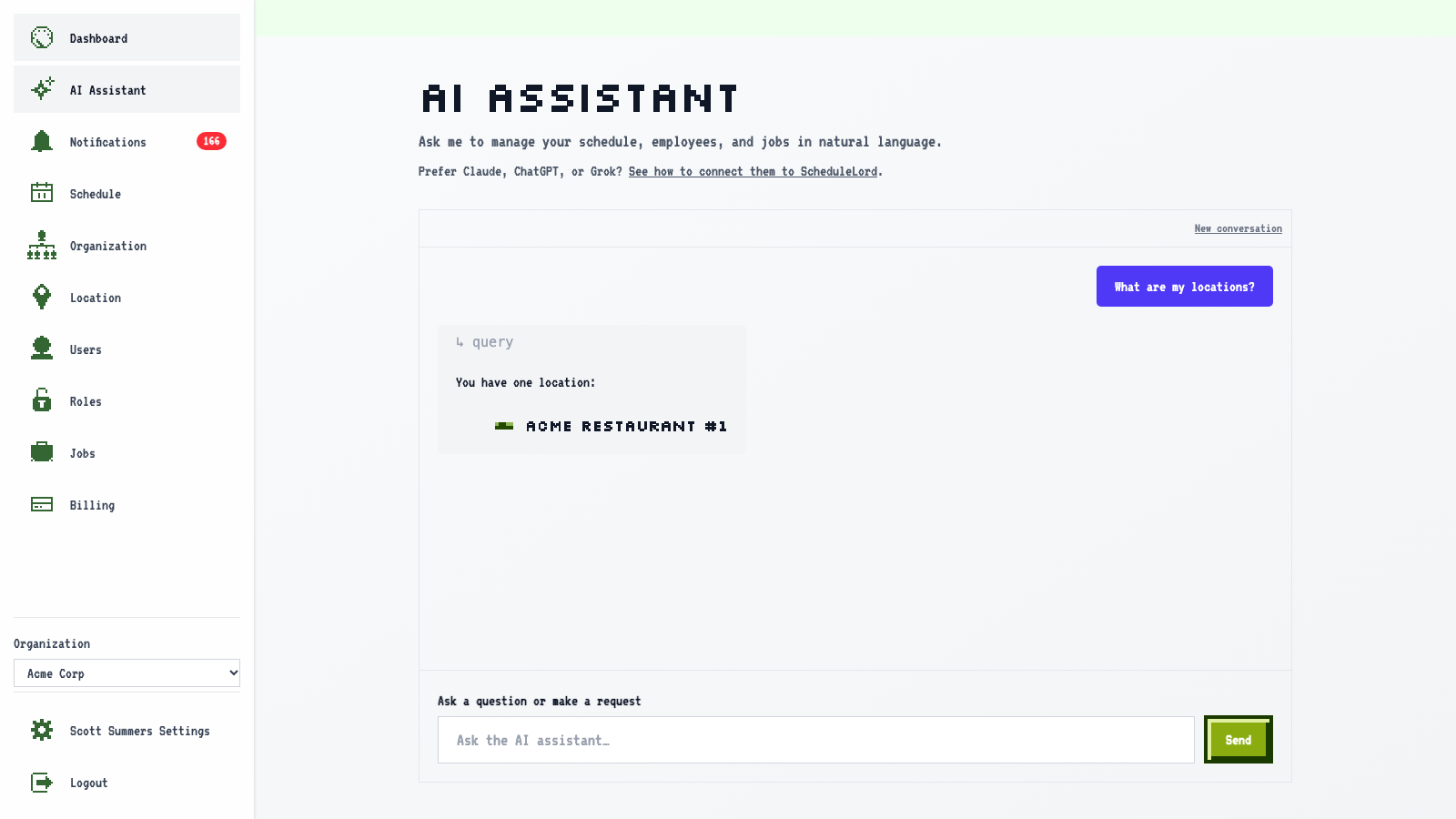
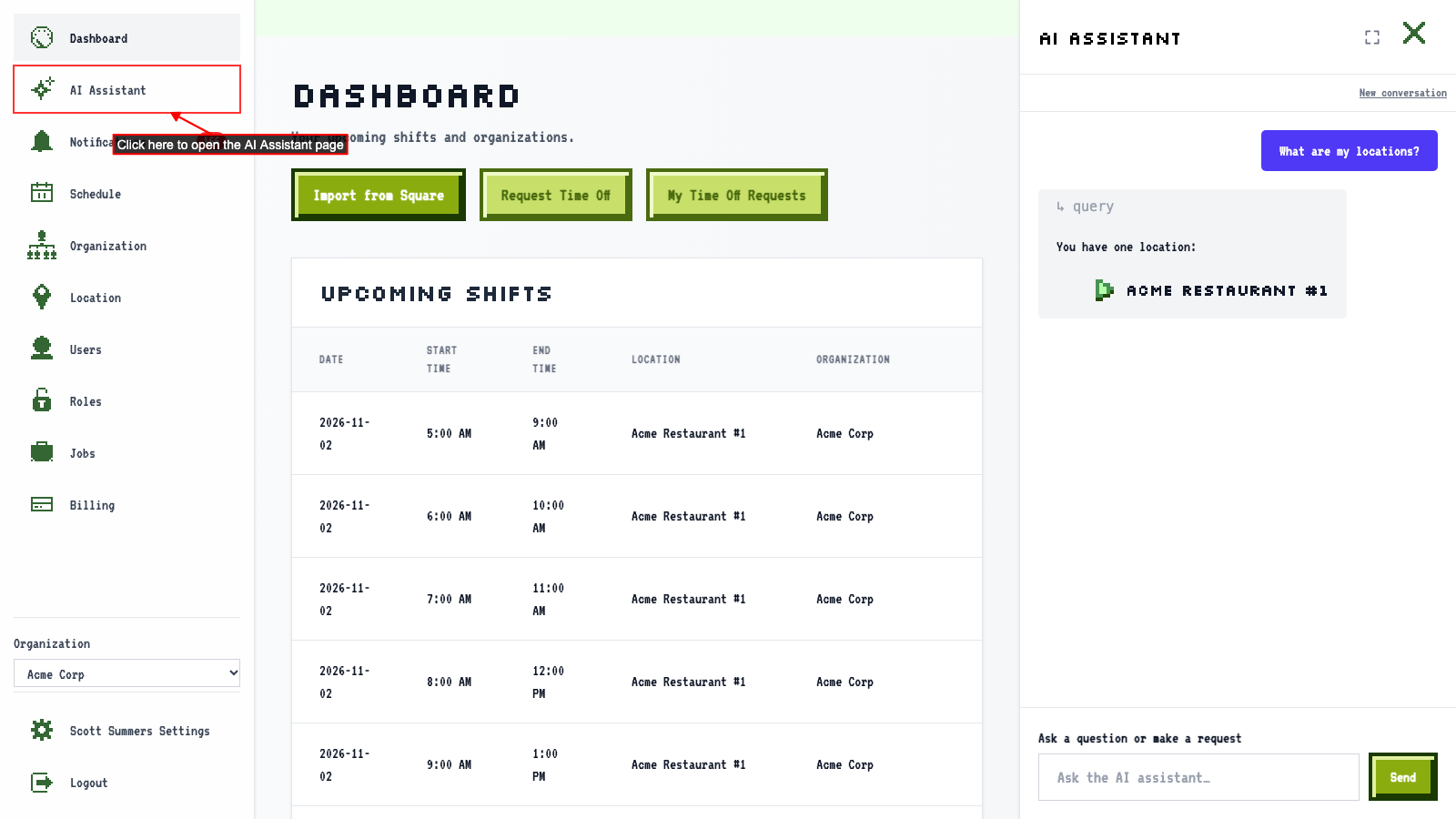 The assistant opens on its own page, with more room for your conversation. The assistant button at the top right is hidden here, since your conversation is already in front of you.
 When you go to another page, the assistant is back beside it with the same conversation.
How to open the assistant beside any page
Start on any page inside your organization.
Click the AI Assistant button at the top right of the page.
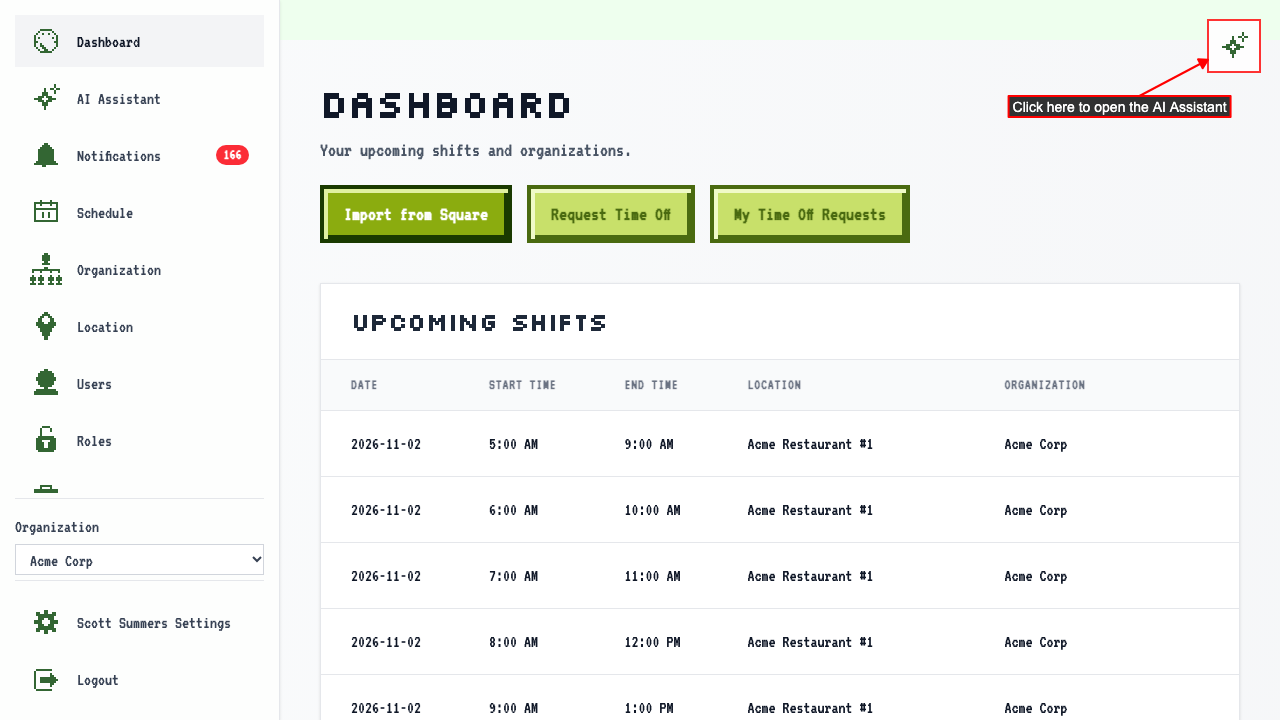 The assistant opens on the right side of the page.
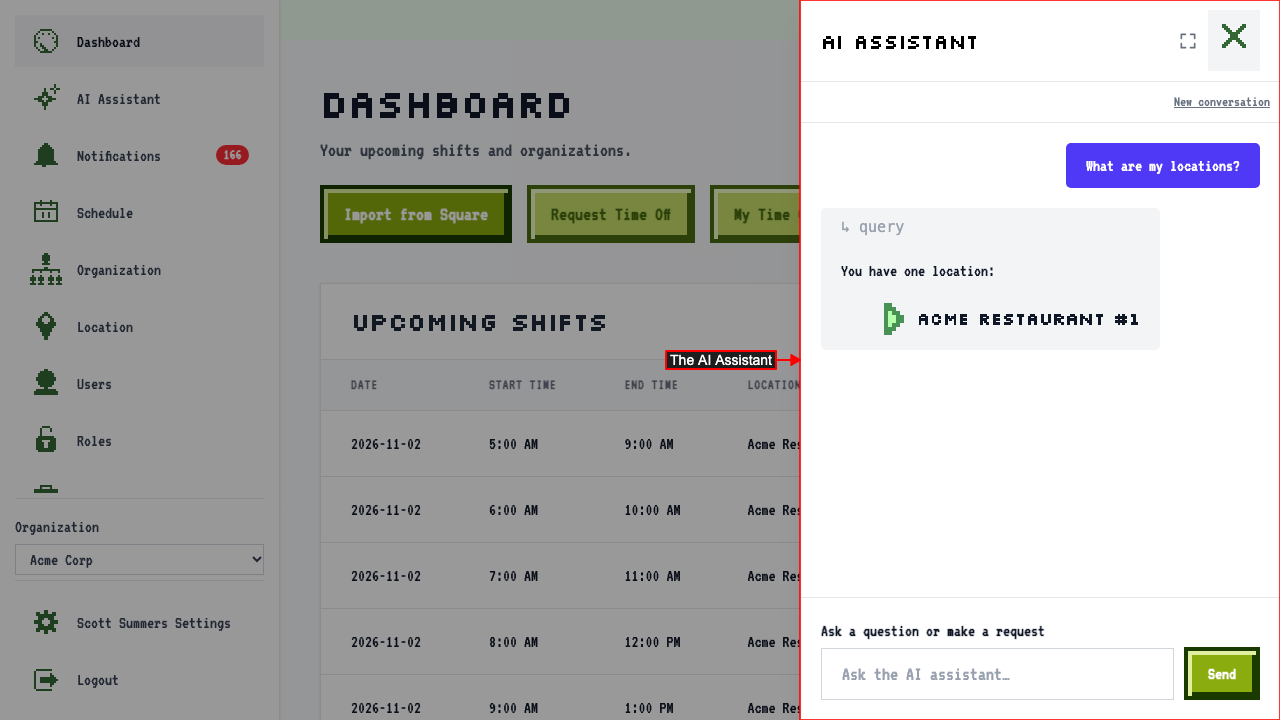 To close it, click the X at the top of the assistant. When it's open over the page, Escape closes it too.
How to close the assistant beside your page and get it back
On a wide screen, the assistant sits beside your page so you can use both at once.
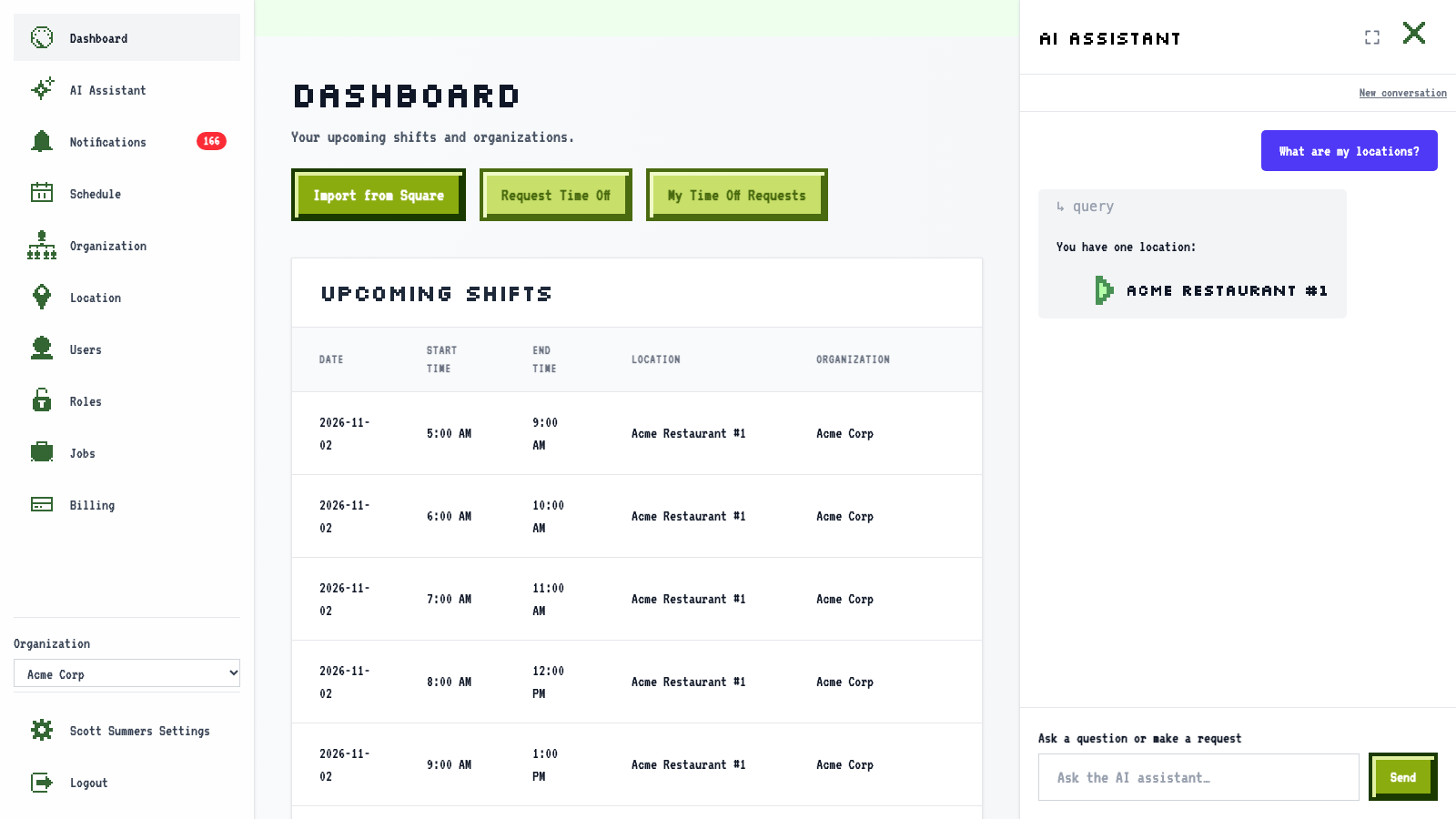 Click the X at the top of the assistant to close it and give your page the full width.
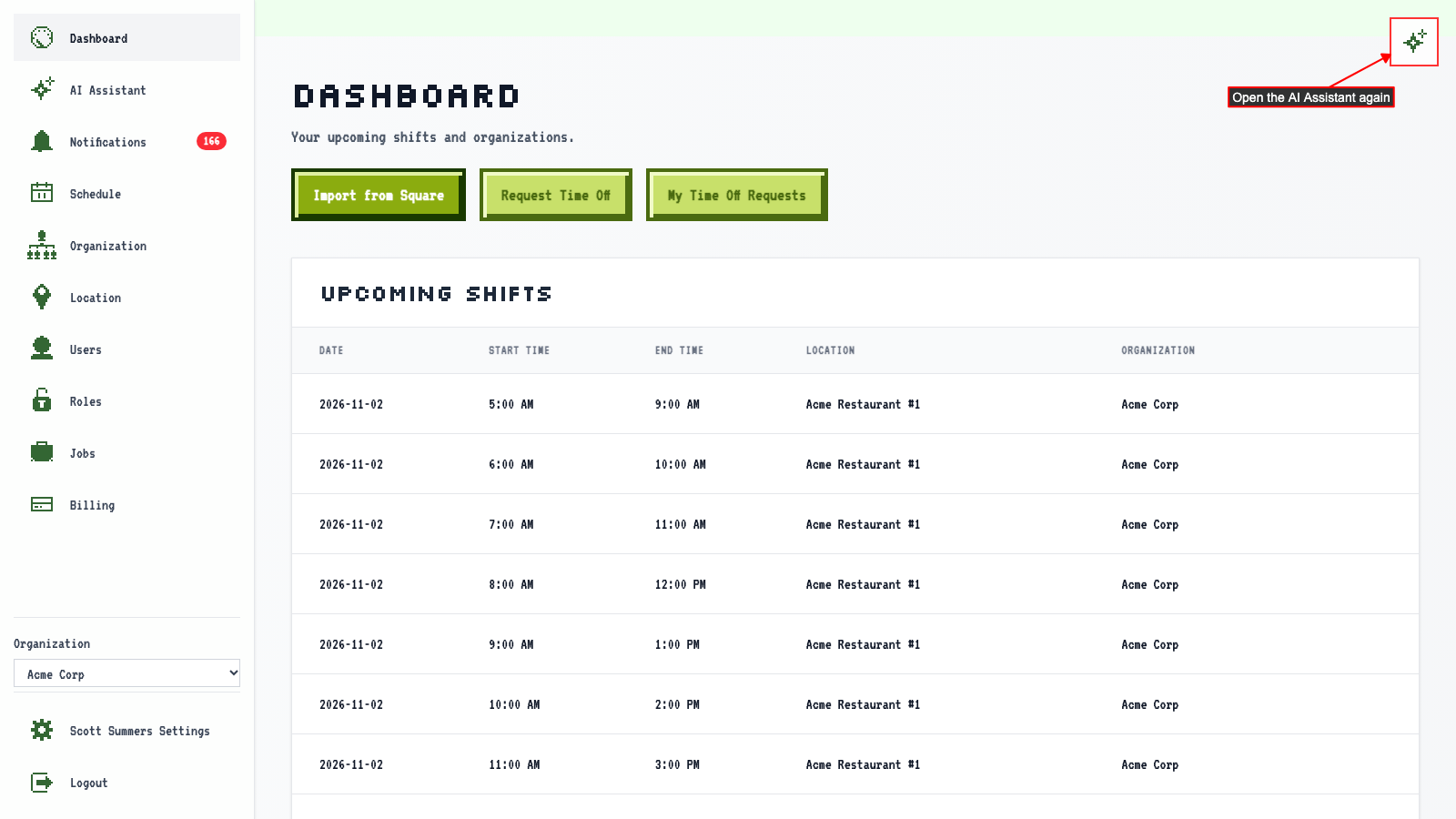
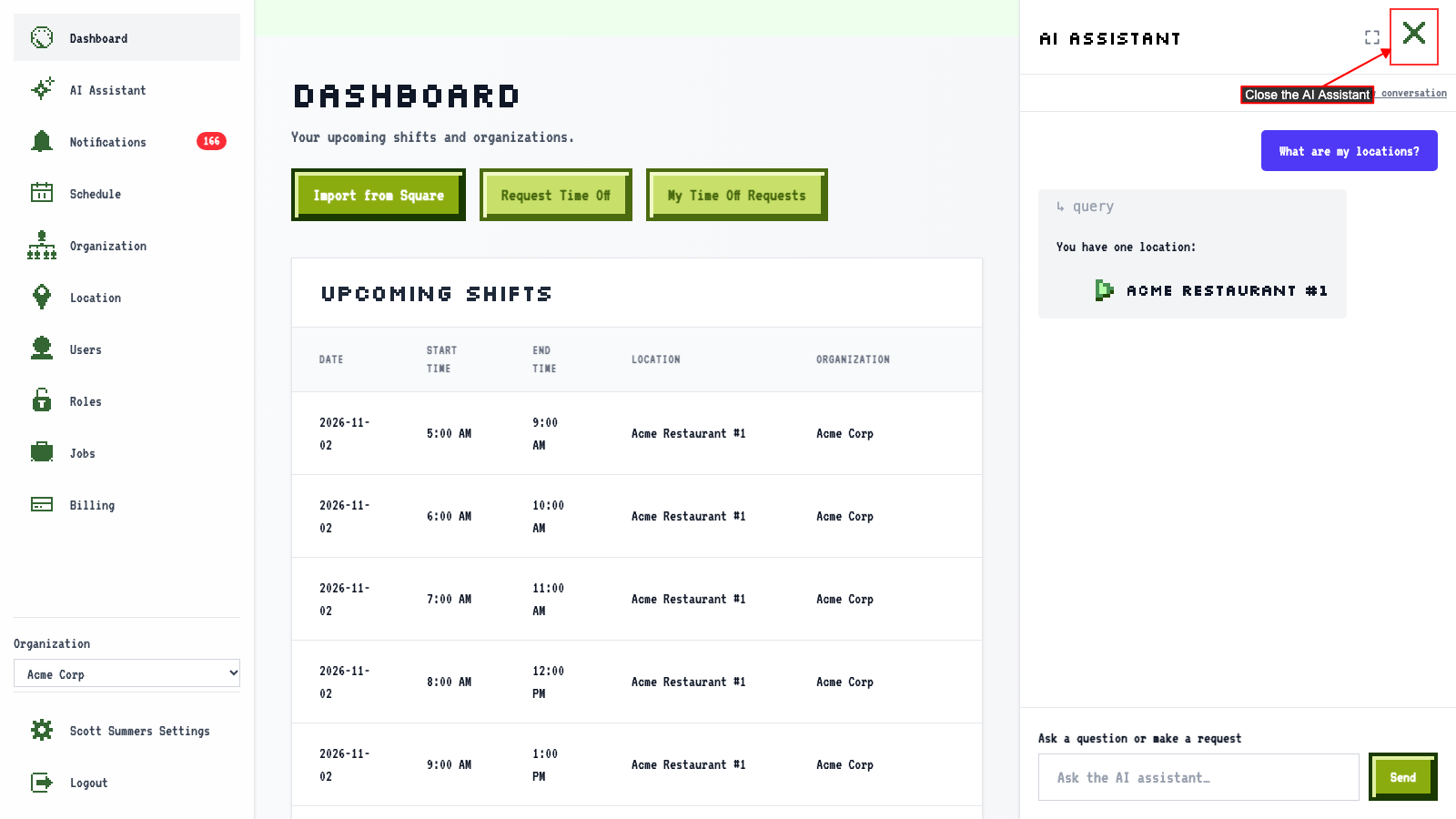 It stays closed as you move between pages, and when you come back later.
Click the AI Assistant button at the top right to bring it back.
How to make the assistant beside your page full screen
Open the assistant beside your page.
Click the full screen button, next to the X, to give the conversation the whole page. The navigation stays where it is, so you can still move to other pages.
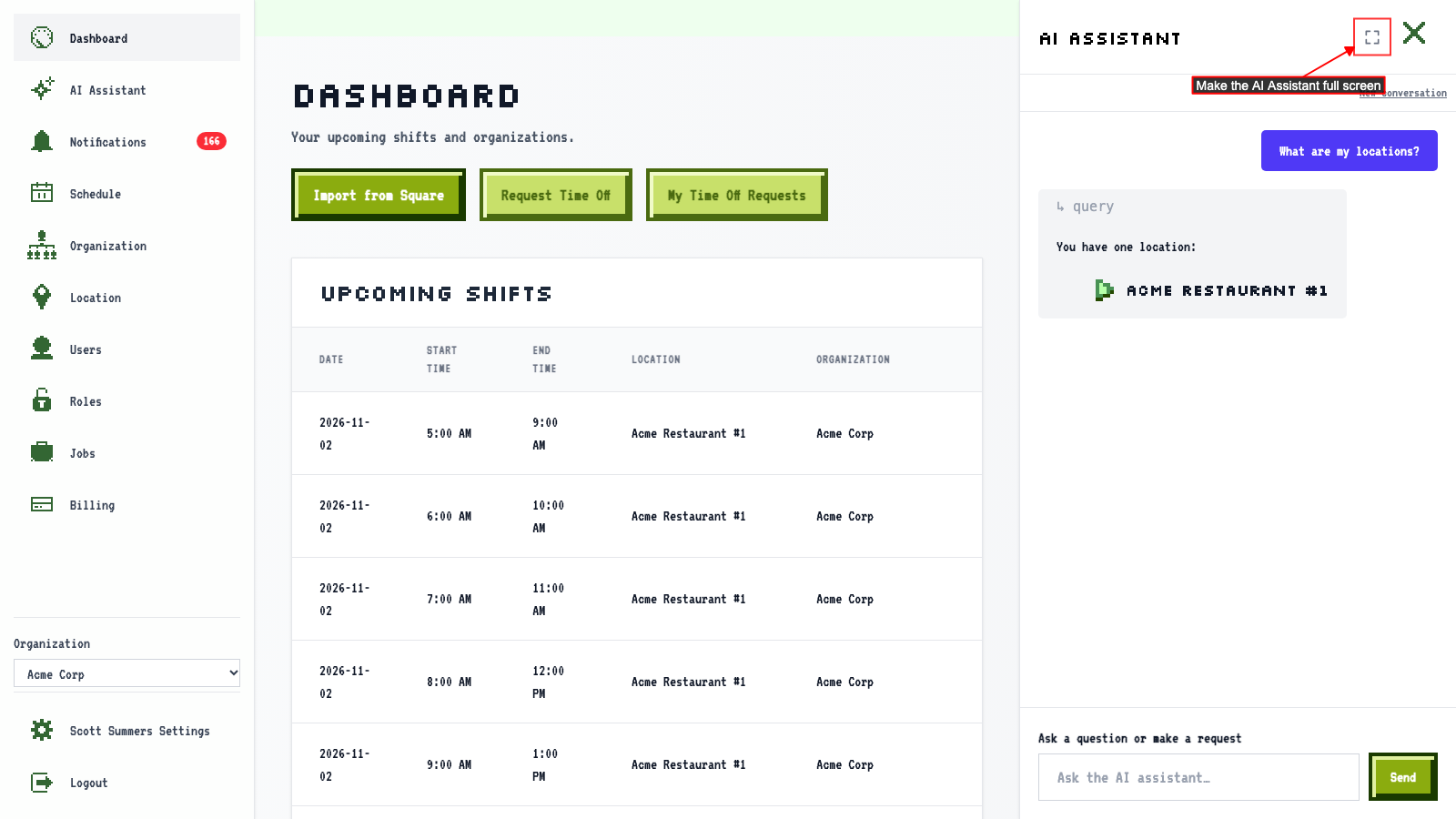
 Press Escape or click the full screen button again to go back.