You can now sign in to ScheduleLord with Google or Microsoft

You can now create a ScheduleLord account, or sign in to one you already have, with your Google or Microsoft account. It's one click, there's no password to make up, and your passkeys keep working alongside it.
What it is
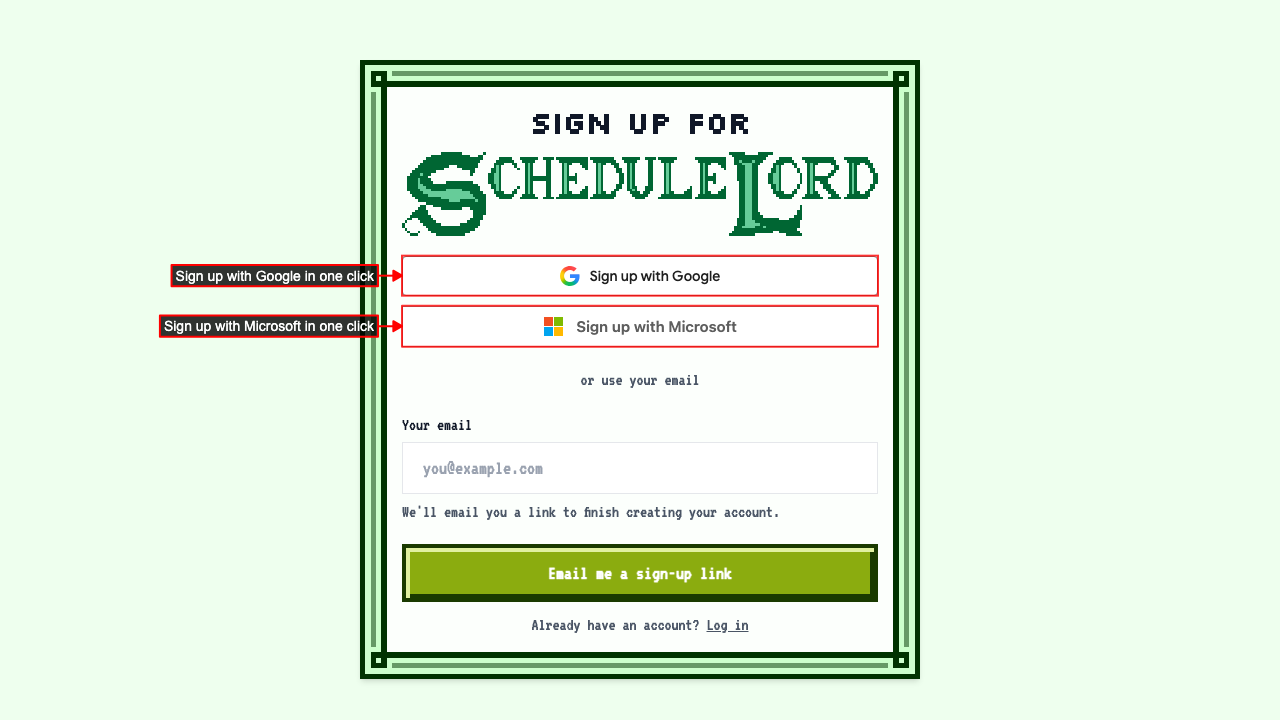
On the sign-up page, choose Sign up with Google or Sign up with Microsoft. You're sent to Google or Microsoft to pick your account, then straight back to ScheduleLord, signed in. New accounts land on the AI Assistant, which asks a few questions and sets up your business from your answers.
Microsoft works with work, school and personal accounts.
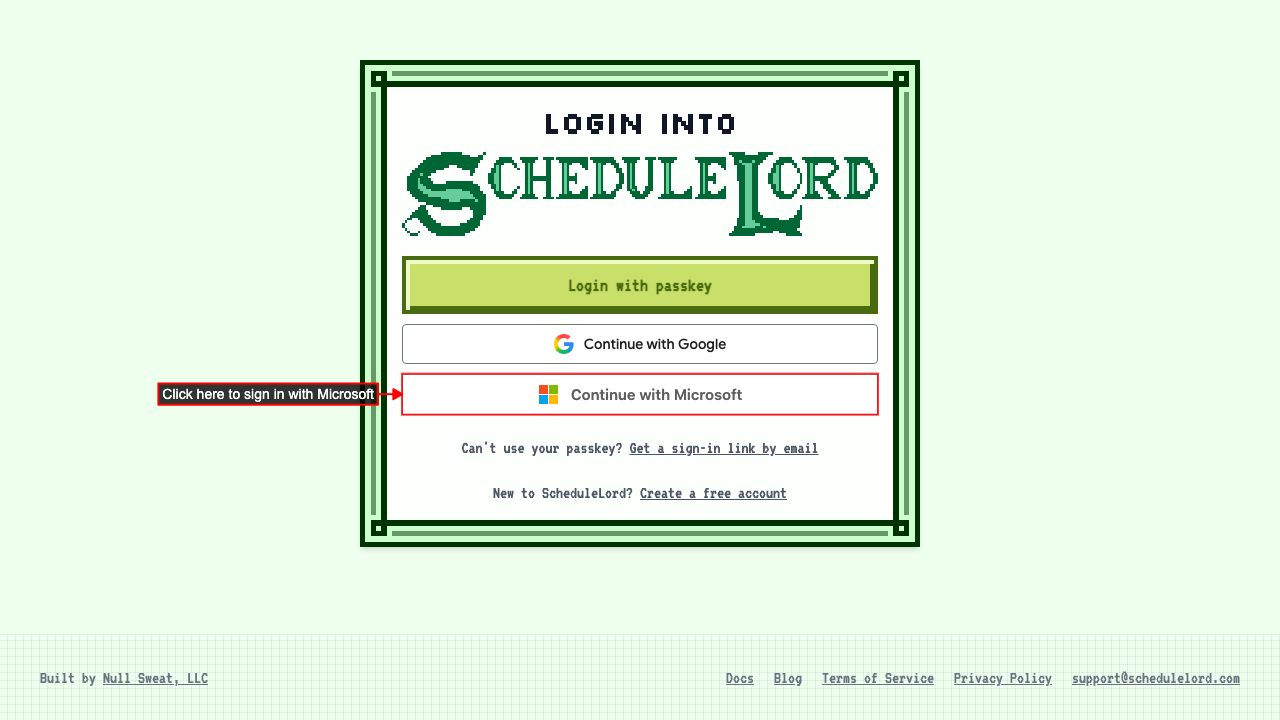
Already have an account? On the login page, choose Continue with Google or Continue with Microsoft. If the email on your Google or Microsoft account matches your ScheduleLord account, you're signed in to the account you already have. You don't get a new, empty one.
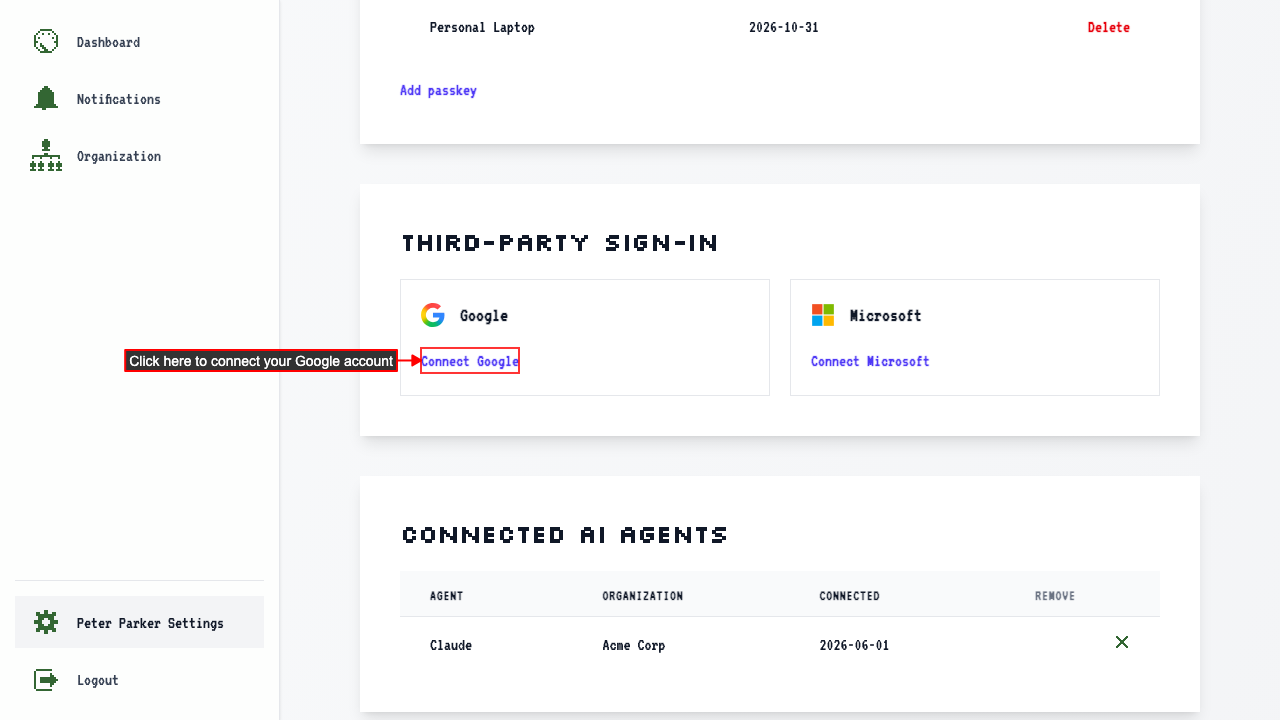
You can also connect Google or Microsoft from your settings, under Third-party sign-in. You can disconnect them there too. If Google or Microsoft is the only way you sign in, the disconnect button stays hidden until you add a passkey, so you can't lock yourself out.
The guides have the details:
- Signing in with Google
- Signing in with Microsoft
- Connecting your Google account in settings
- Connecting your Microsoft account in settings
Why we did it
ScheduleLord has never had passwords. You sign in with a passkey, which uses your fingerprint, face or device PIN, or with a link we email you. Passkeys are more secure than passwords, and we still think they're the best way to sign in.
But getting started took a few steps: enter your email, find our email in your inbox, click the link, then set up a passkey. We watched people leave at each of those steps. Some never came back from their inbox, and some closed the browser's passkey prompt because they weren't sure what it was asking.
Most of the owners and managers we build for already have a Google or Microsoft account, and they already know what "Sign in with Google" does. So we made that the first thing on the sign-up page. You don't have to wait for an email or learn what a passkey is before you can start building a schedule. You can always add a passkey later from your settings.
How we did it
This part is for the curious. You don't need any of it to use the feature.
Google and Microsoft both support OpenID Connect, the standard behind most "Sign in with…" buttons. ScheduleLord runs on Cloudflare Workers, and we wrote the sign-in flow ourselves, using the jose library to check the tokens. It's a few hundred lines, and both providers share the same code. Here's what happens when you click the button:
- We send you to Google or Microsoft with a one-time code challenge (this is called PKCE) and a random value we've saved in your browser session. When you come back, the value has to match. That stops anyone from tricking your browser into finishing someone else's sign-in.
- We swap the code they send back for a signed token and check the signature against the provider's published keys. We also check that the token was issued by Google or Microsoft, and for ScheduleLord.
- We only accept verified email addresses. Google tells us whether the address is verified, and we turn away accounts where it isn't. Microsoft is trickier: an organization can put any email address on its users' accounts, including ones it doesn't own. So we only accept Microsoft accounts whose email domain the organization has proven it owns. Without that check, someone could make a Microsoft account with your email address and sign in as you.
- We remember which Google or Microsoft account is yours. After your first sign-in, we recognize you by the account itself, not by its email address, so changing your email later doesn't lock you out. Each ScheduleLord account can have one Google account and one Microsoft account.
We ask Google only for your email address. Microsoft also sends your basic profile. We don't see your contacts, calendar or files, and we don't post anything anywhere.
If something goes wrong, for example your Microsoft account's email isn't verified, you're brought back to the login page with a message that says what happened and what to try. You don't get a generic error.
Every guide linked above is generated from our automated tests, screenshots included, so the docs show what the app actually does today. Those tests sign in through a stand-in Google server that runs on our own machines, plus a real Microsoft test account, so we know the whole flow works before it reaches you.
Try it
Head to schedulelord.com and click Get started free. ScheduleLord is free for up to 15 employees at one location, with no credit card needed.
Want another way to sign in?
Google and Microsoft are just the start. If you'd like to sign in with something else, like Apple, Okta, or your company's own sign-in, email us at support@schedulelord.com and tell us which one. We'll add the ones you ask for most.