Approving and Rejecting Requests
How to approve or reject a request
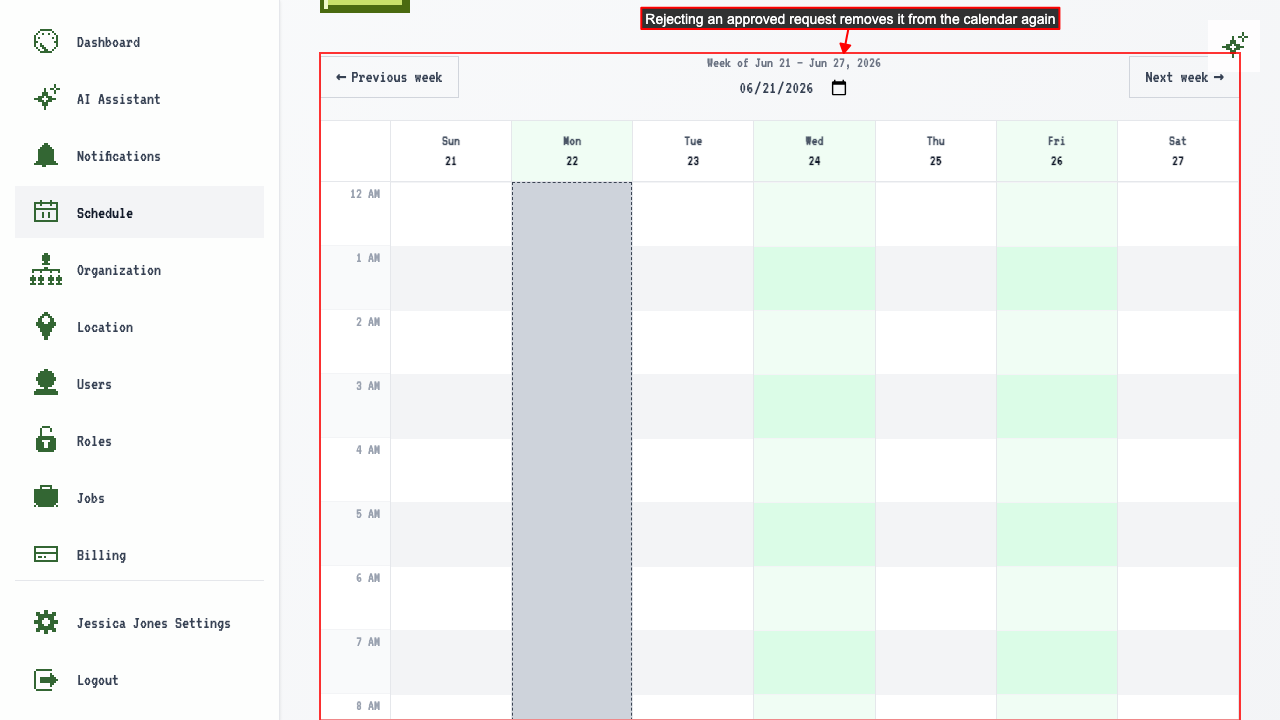
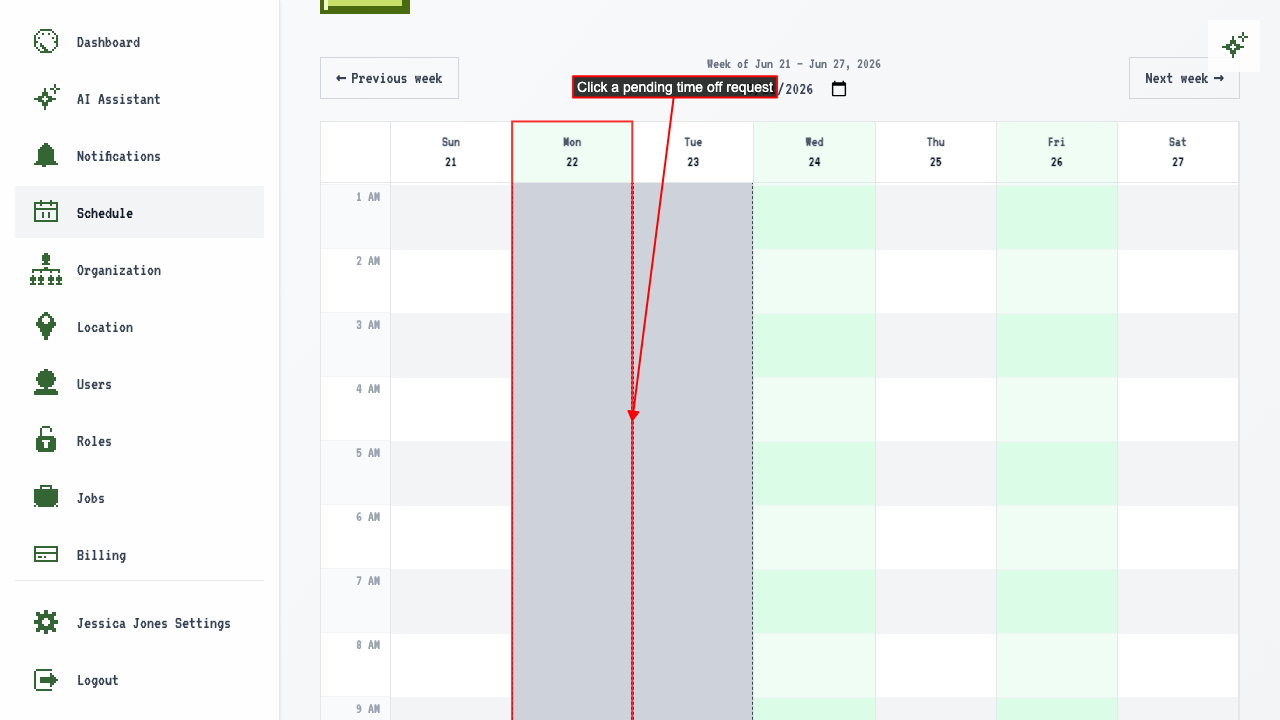
Open the schedule page. A pending time off request from your team shows on the calendar. Click it.
 The popover has Approve and Reject buttons. Click Approve to accept the request.
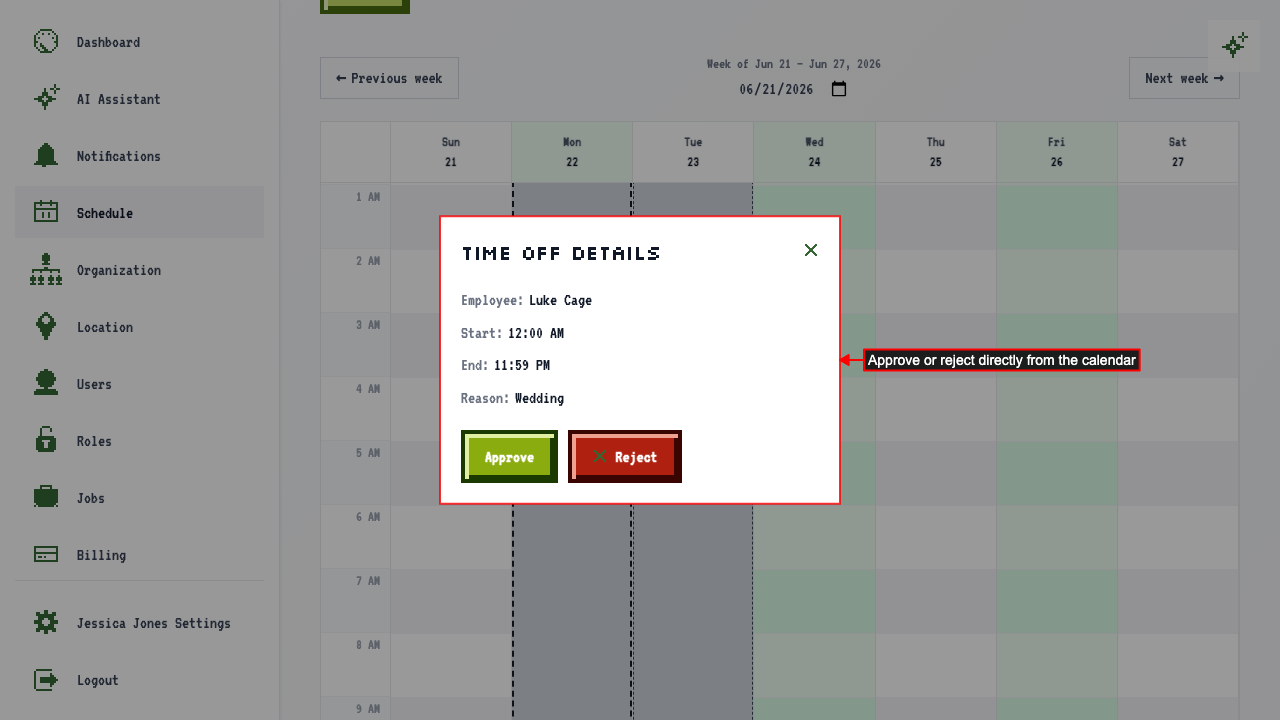 To turn a request down, click it and choose Reject.
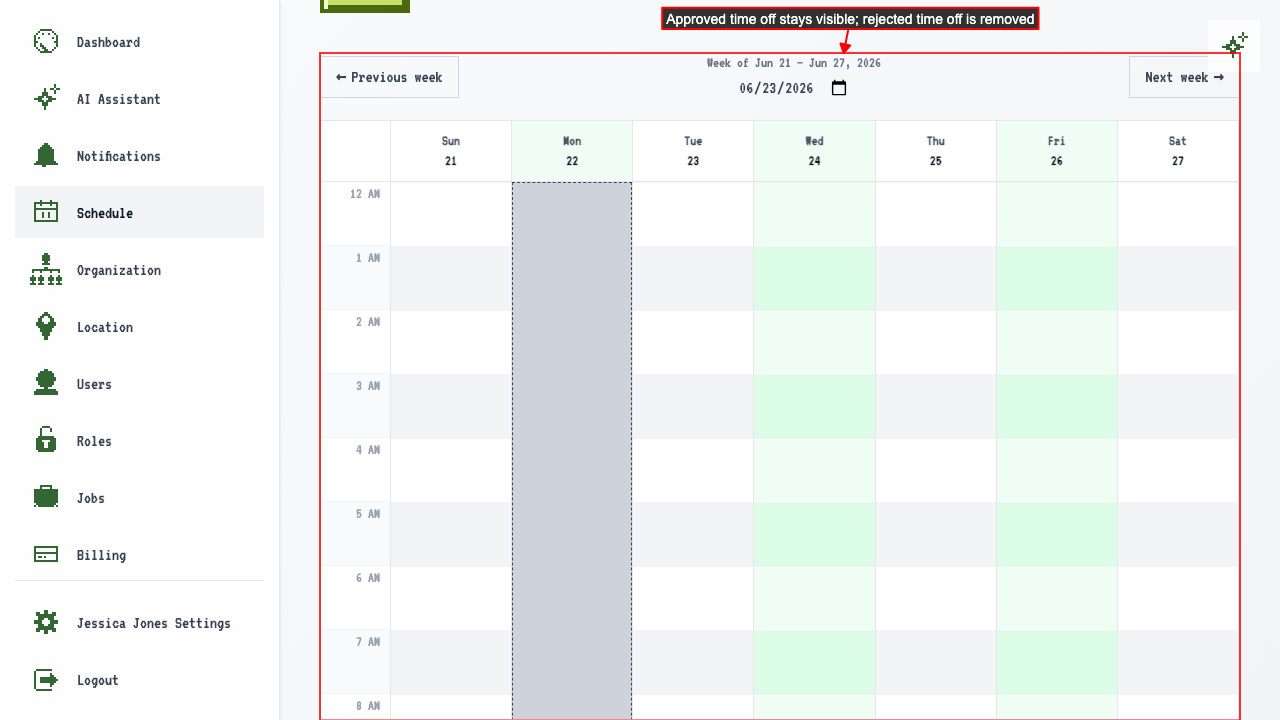
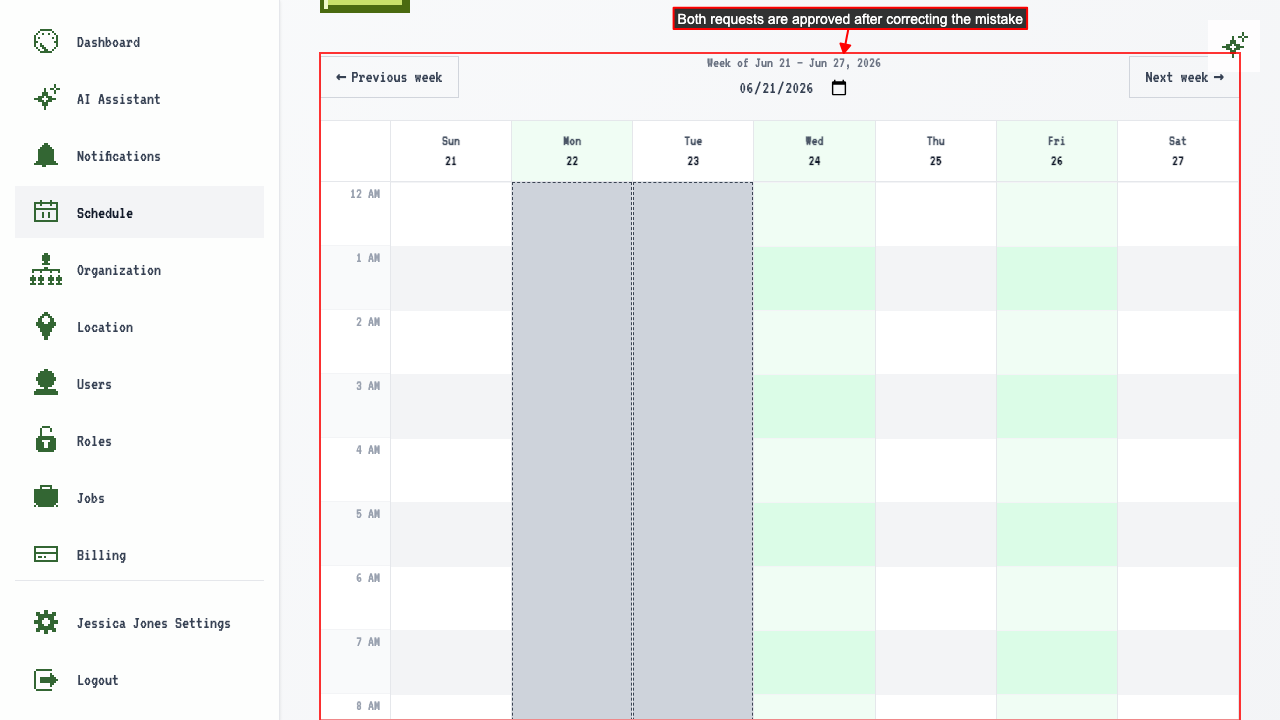
A rejected request disappears from the calendar. An approved one stays, because it's time the person won't be available.
 Click Review Time Off Requests to see every request and its status in one place.
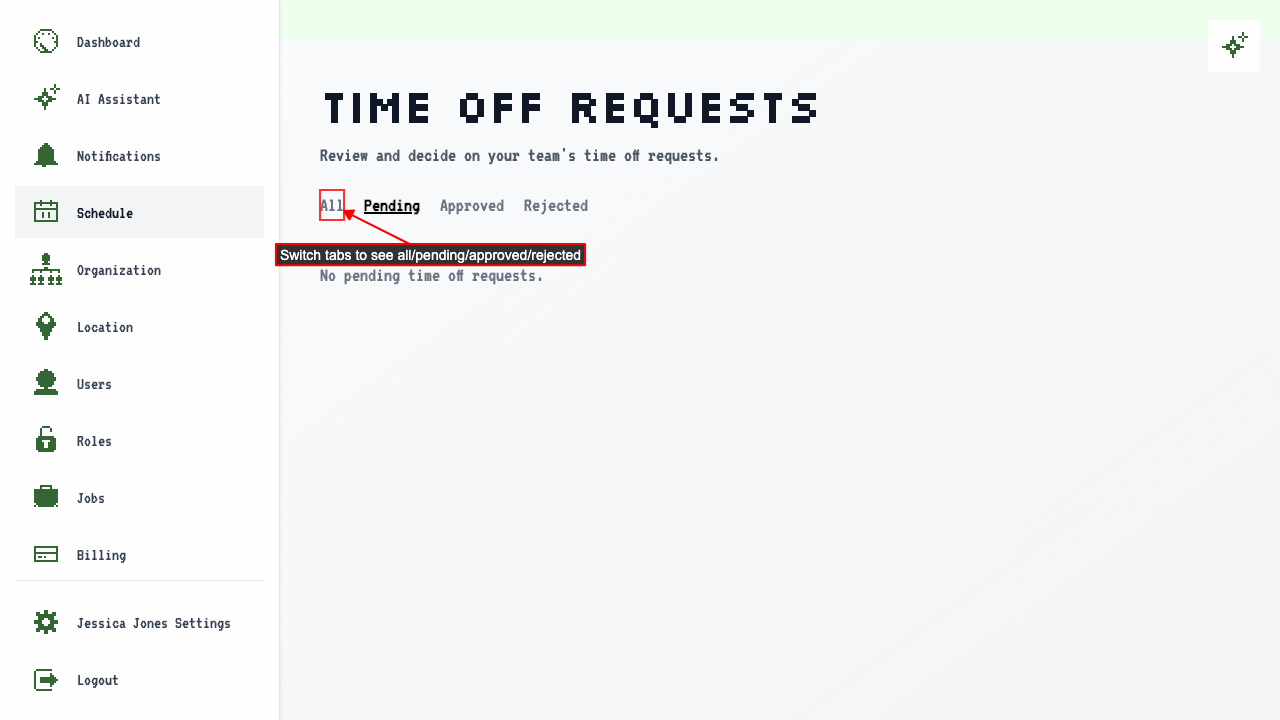
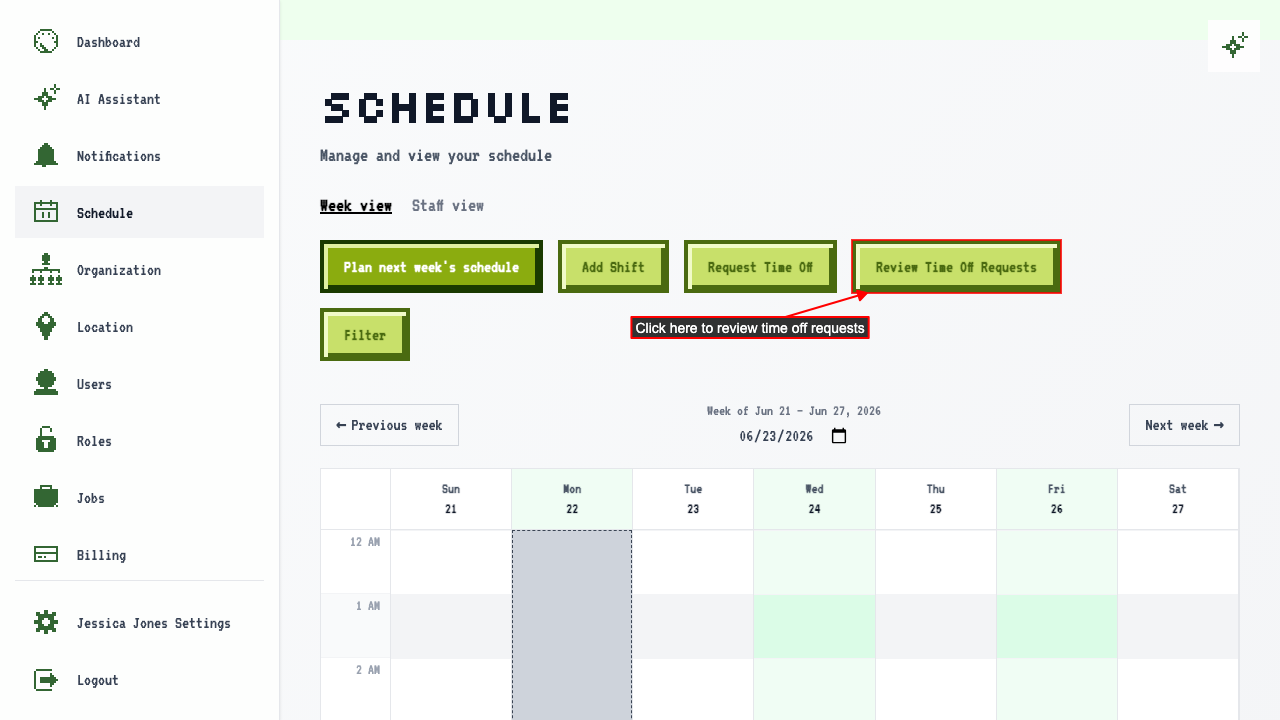 The page opens on the Pending tab, which lists requests you haven't decided yet. Once you've approved or rejected everything, it's empty.
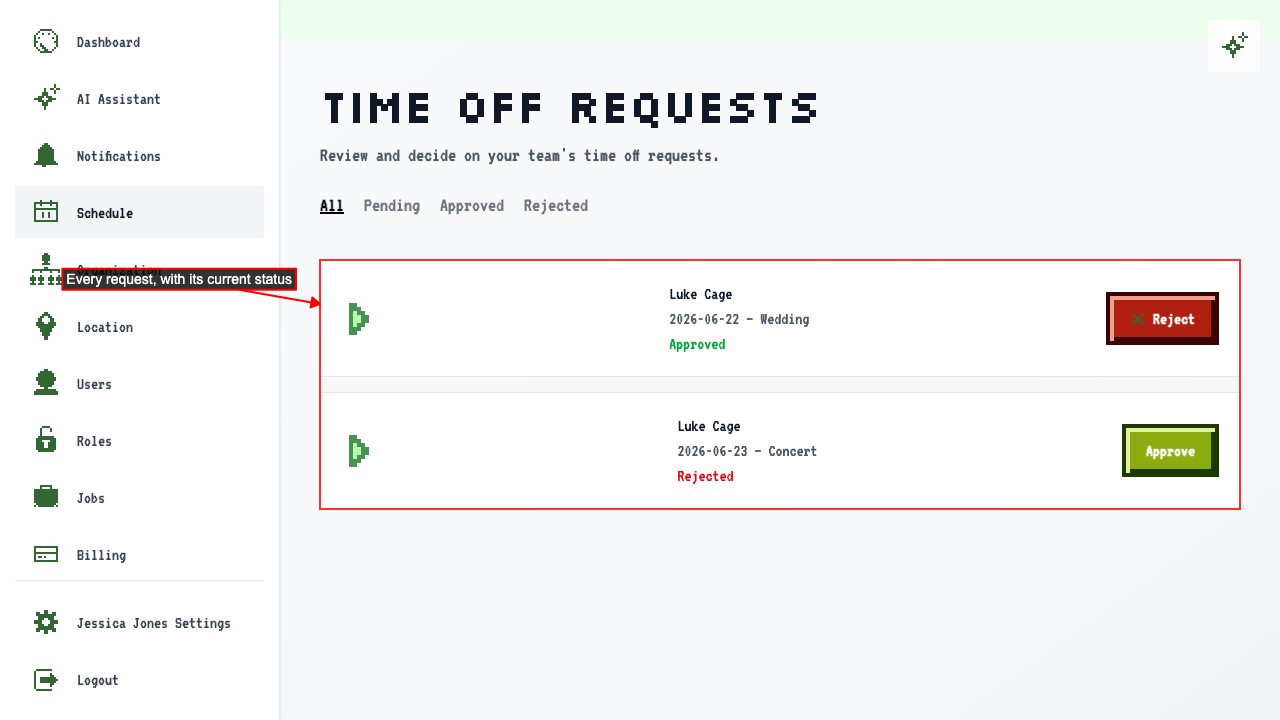
Switch to the All tab to see every request and its current status.
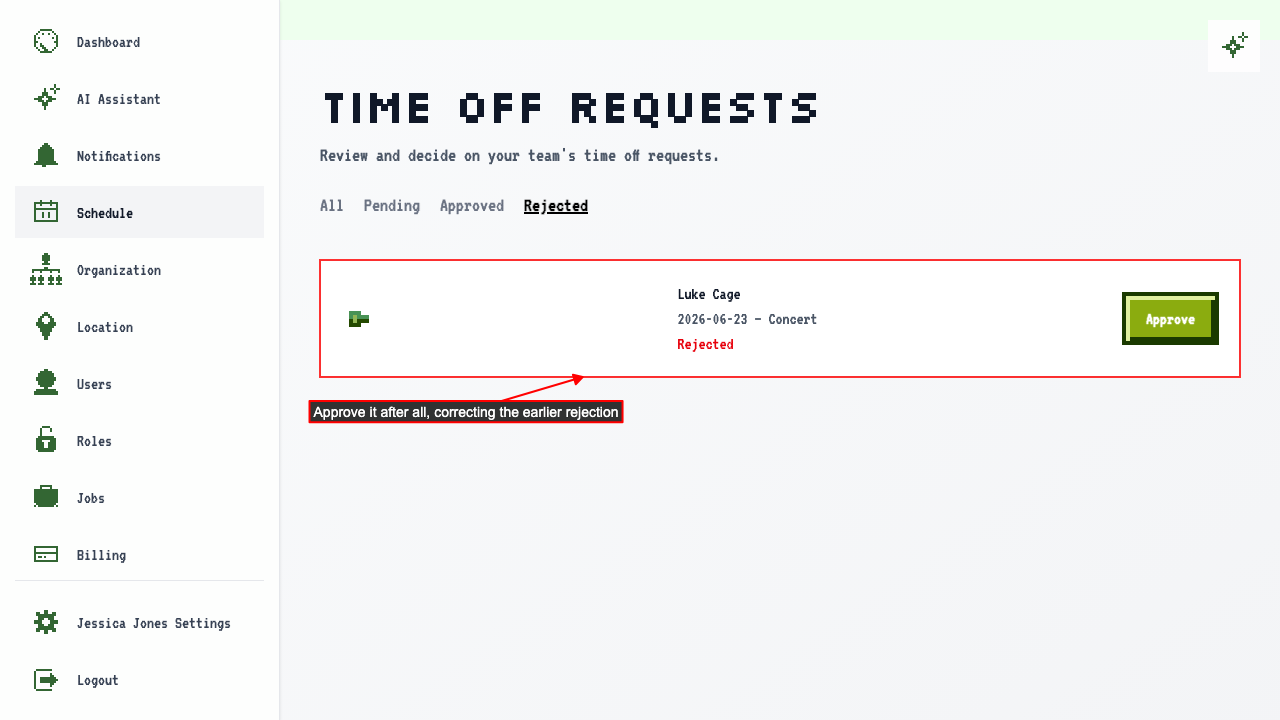
 The Rejected tab shows only rejected requests. If you change your mind, you can approve one from here.
 The request you approved from the Rejected tab shows on the calendar again.
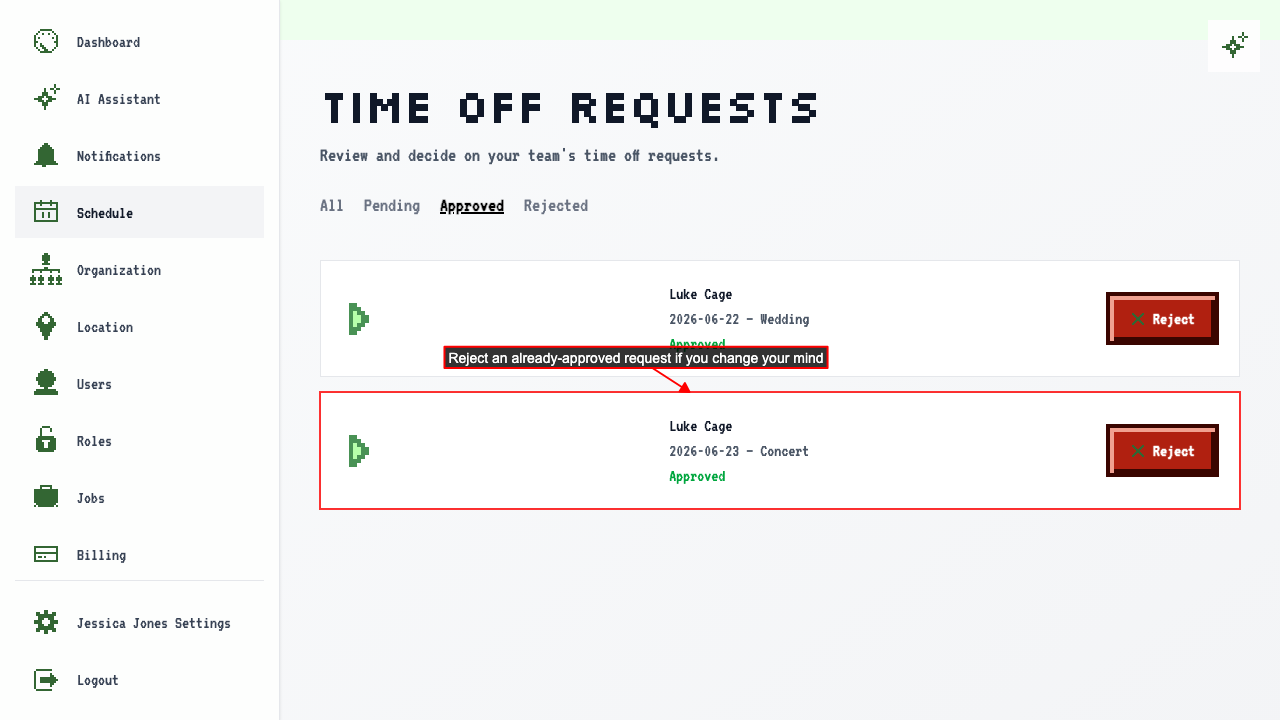
 It works the other way too. Open the Approved tab to reject a request you approved earlier.
 Back on the schedule, the request you rejected is gone from the calendar.