Editing Your Organization
How to remove someone from your organization
Start on the Organization page.
Click the organization's name to open its details.
Click the Edit Organization button.
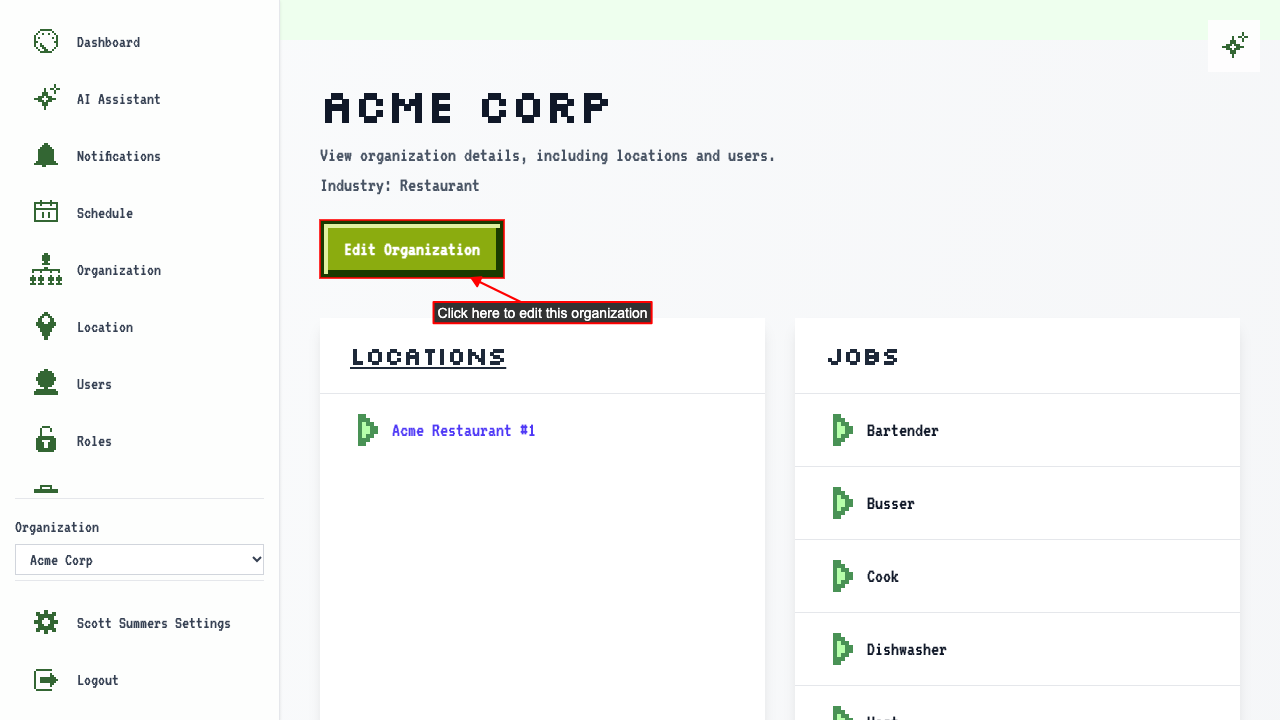 On the edit page, you can see all users in the organization.
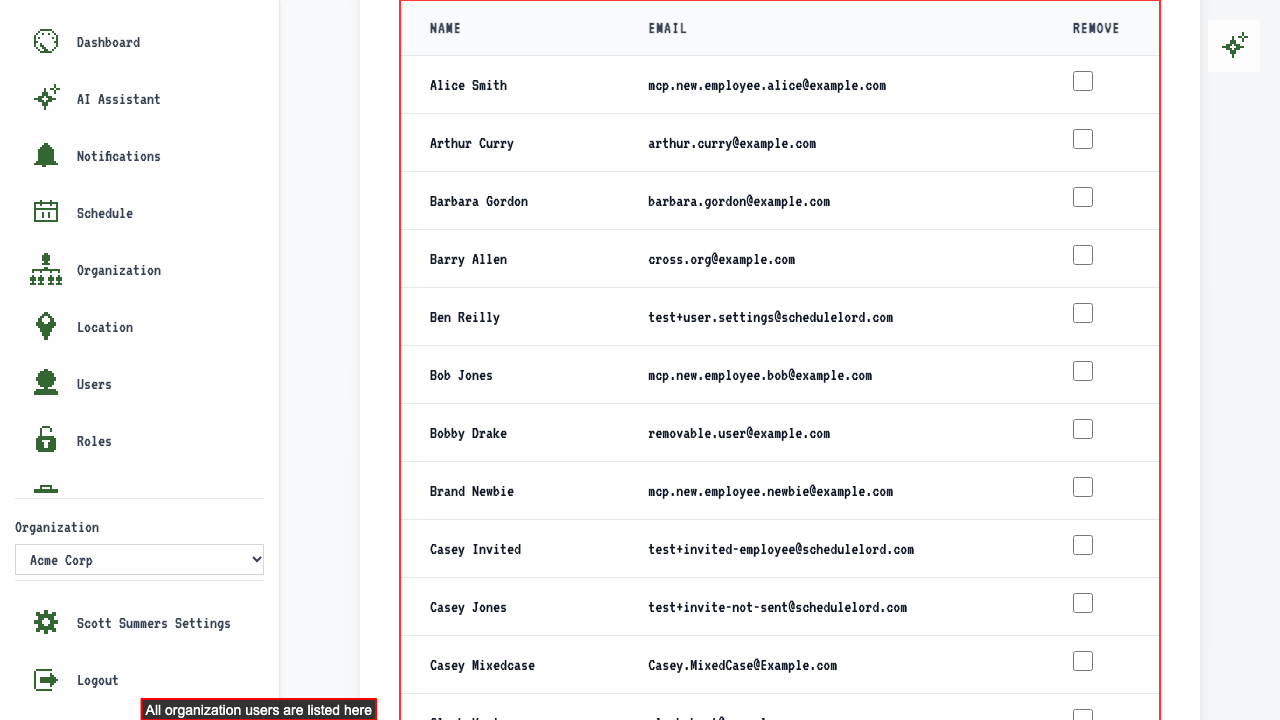 Select the users you want to remove from the organization.
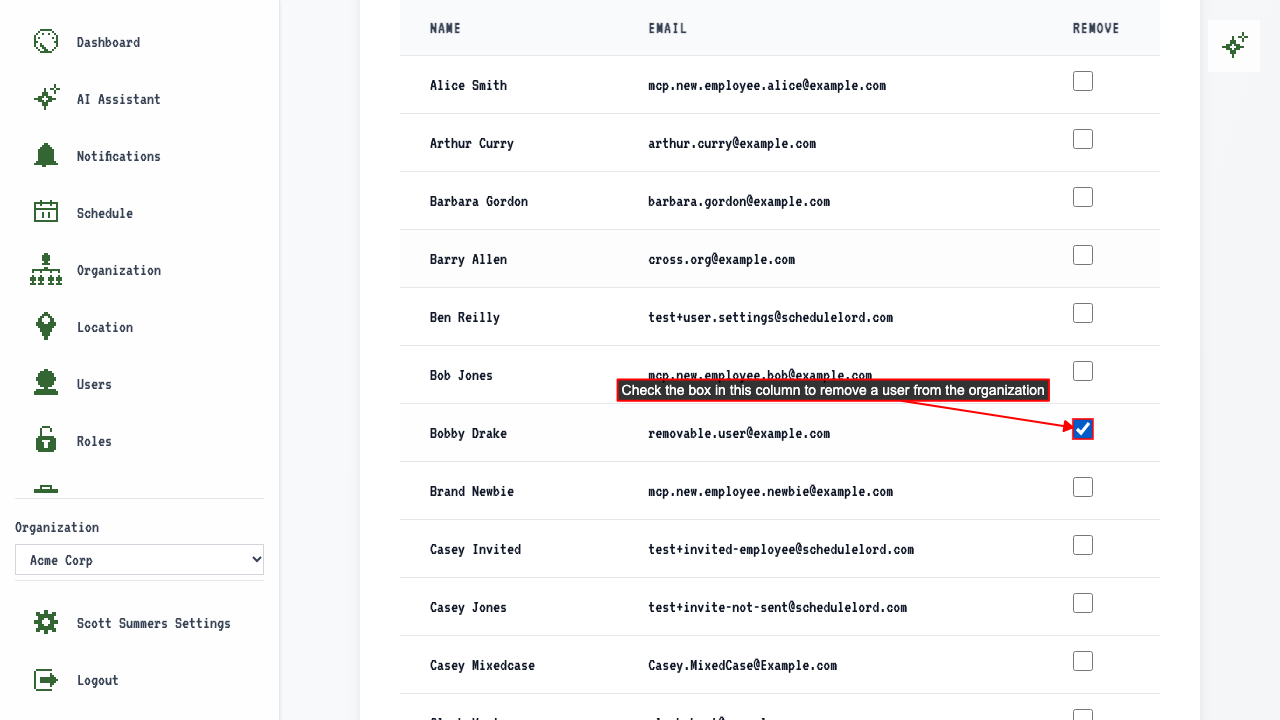 Submit changes to apply user removal.
The removed user no longer appears on the organization detail page.
On the Schedule page, that user's upcoming shifts are now unassigned.
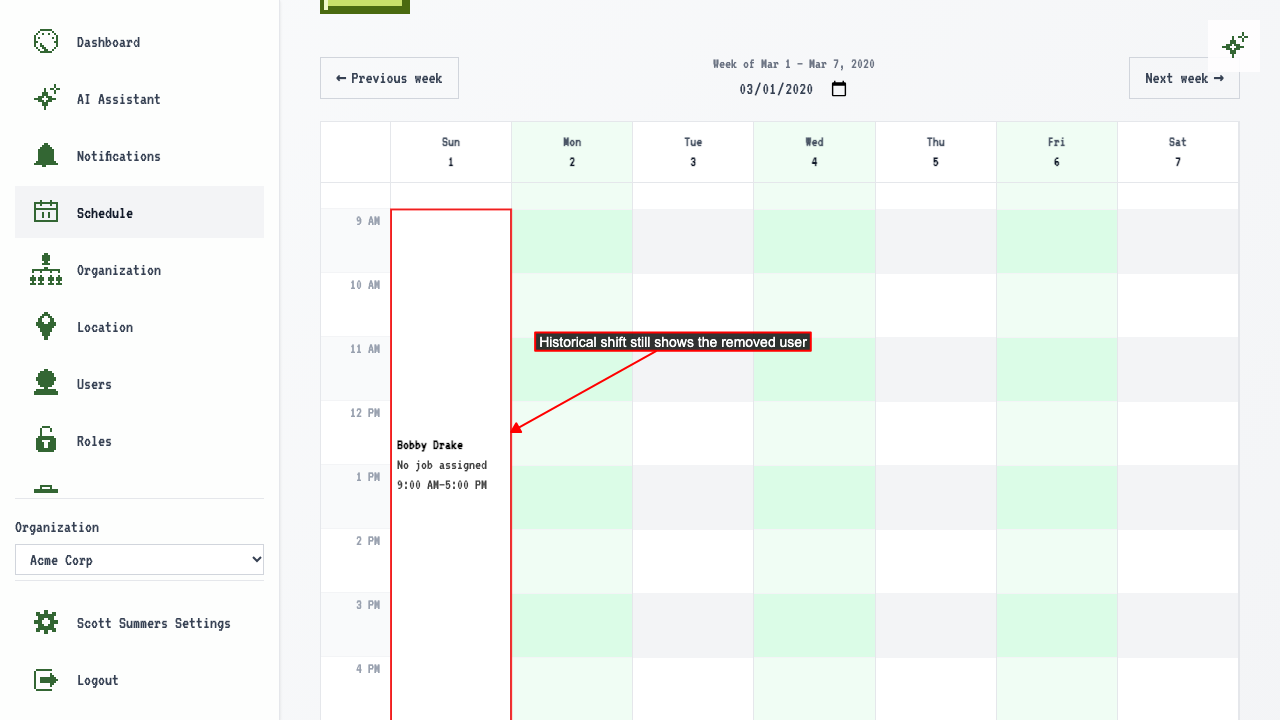
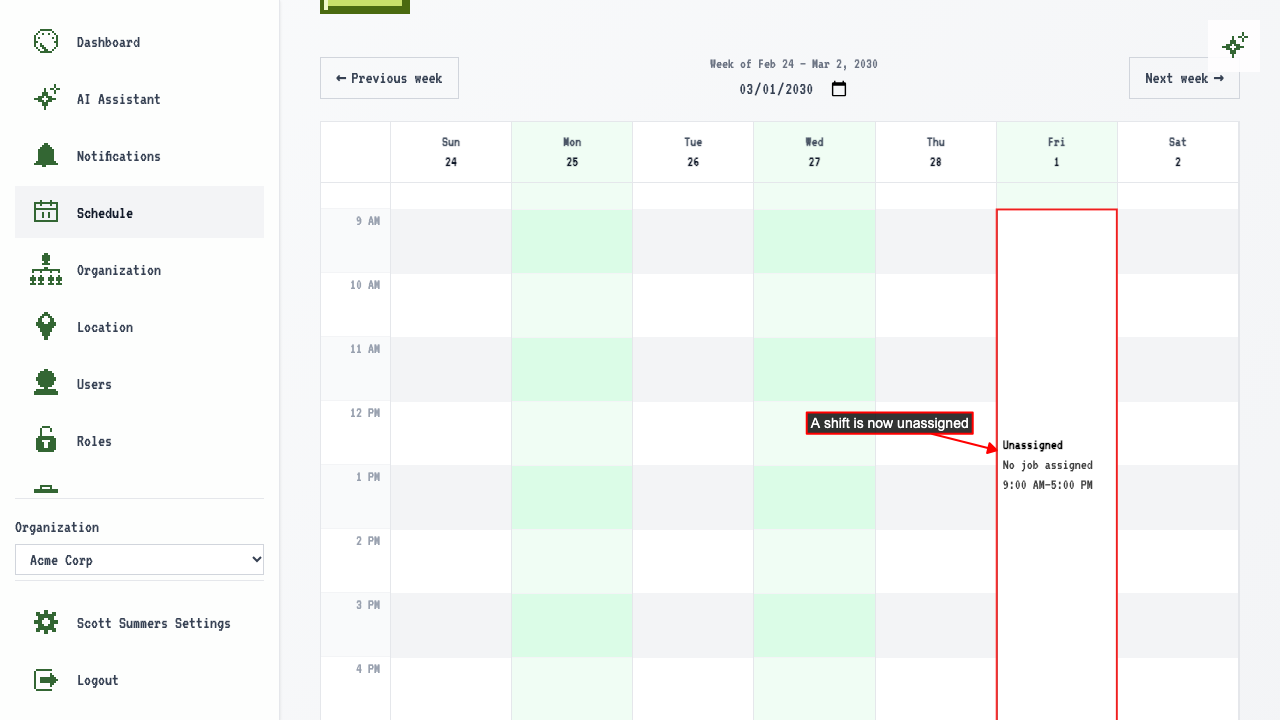 Past shifts still show the removed user.
You can't remove the last owner
Open the edit page for an organization that has only one owner.
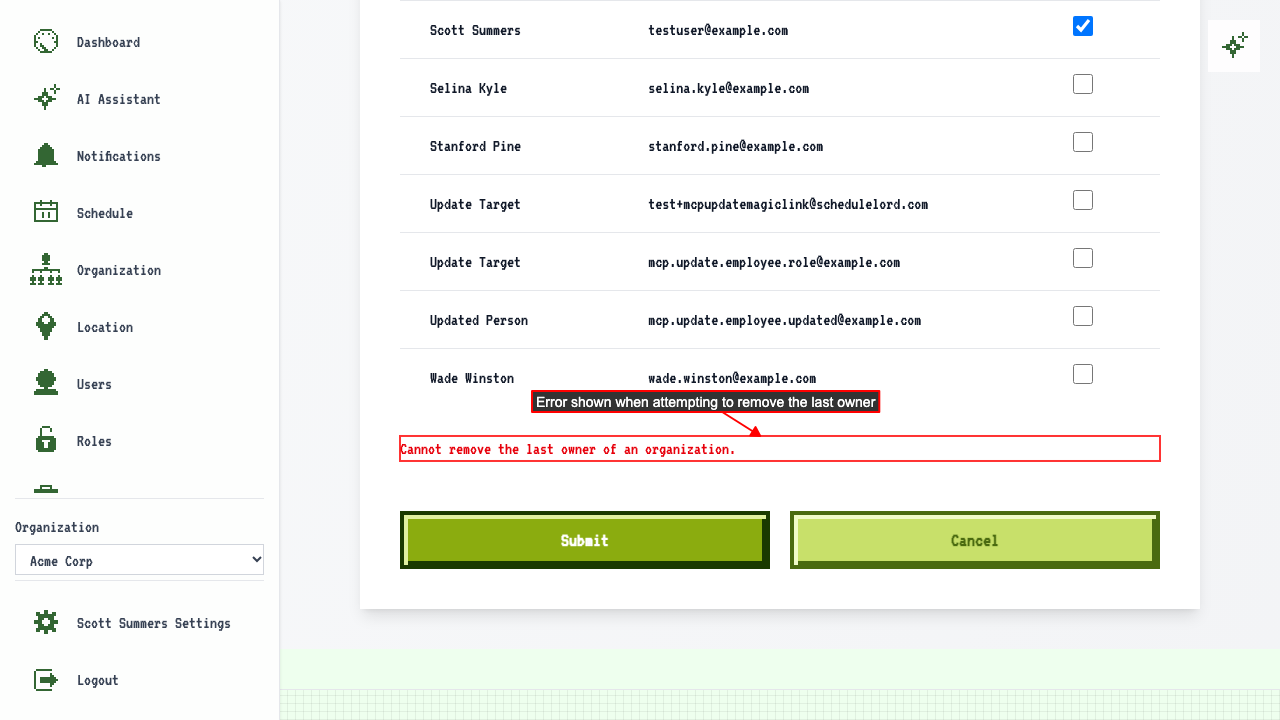
Trying to remove that owner shows an error - an organization always needs at least one.
How to rename your organization
Start on the Organization page.
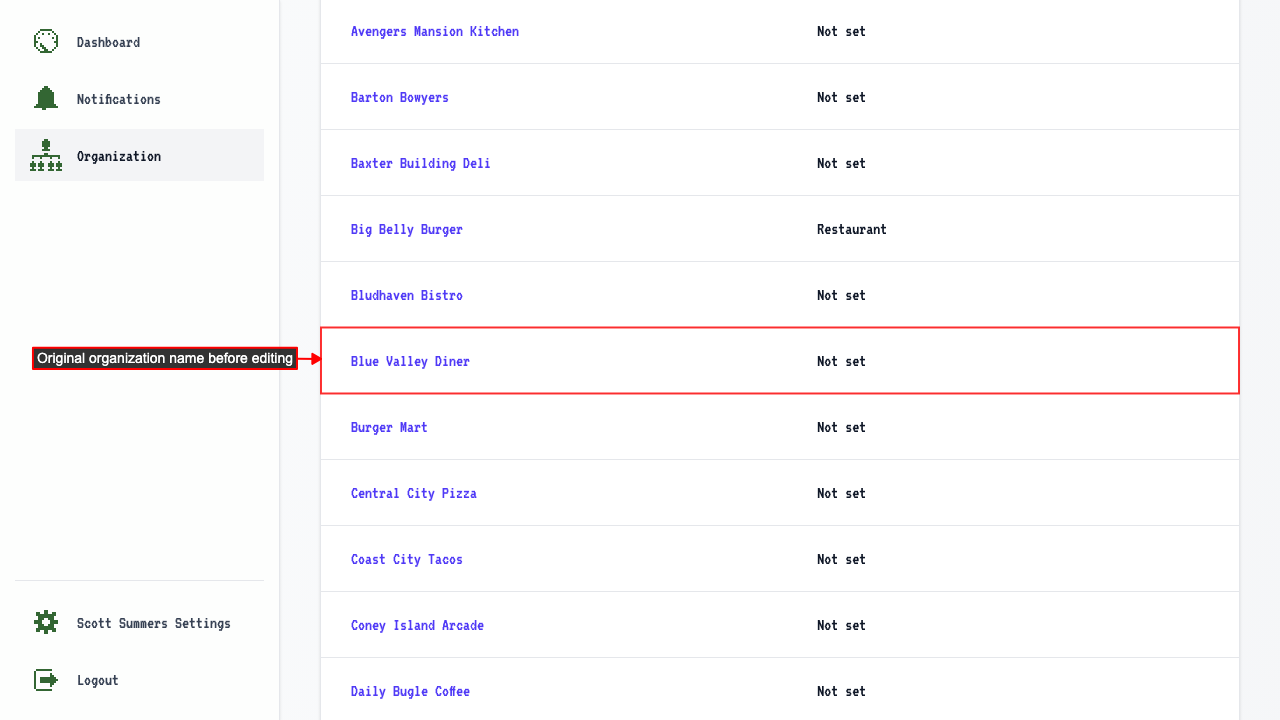
You can see the original organization name in the table before editing.
 Click the editable organization name to open its detail page.
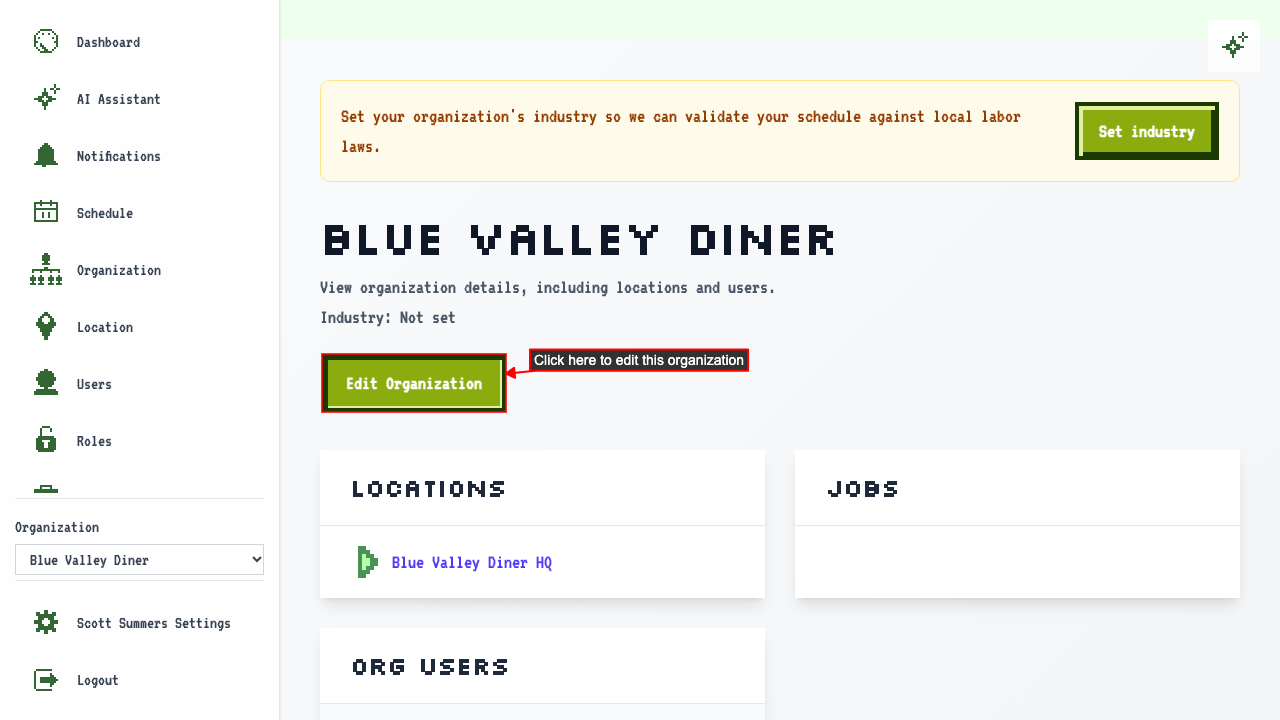
On the organization detail page, click the Edit Organization button to open the edit page.
 Update the organization name and submit.
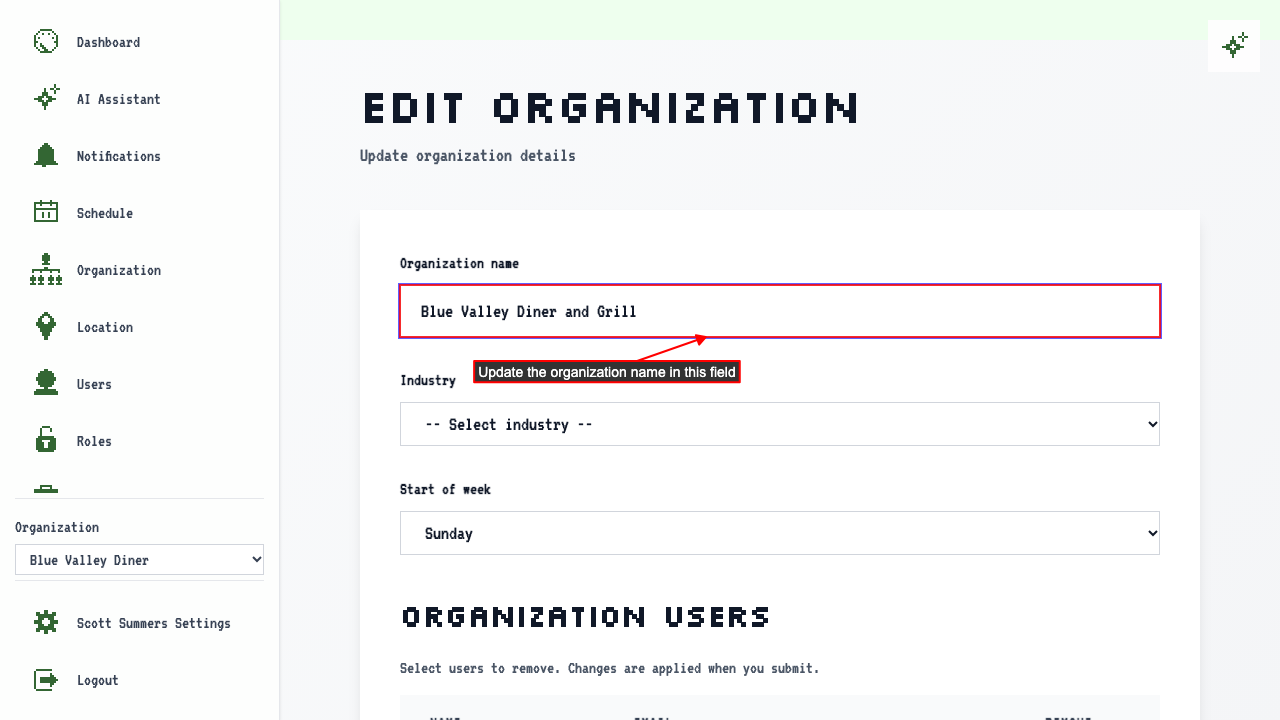 This redirects back to organization details page where the updated name appears in the header.
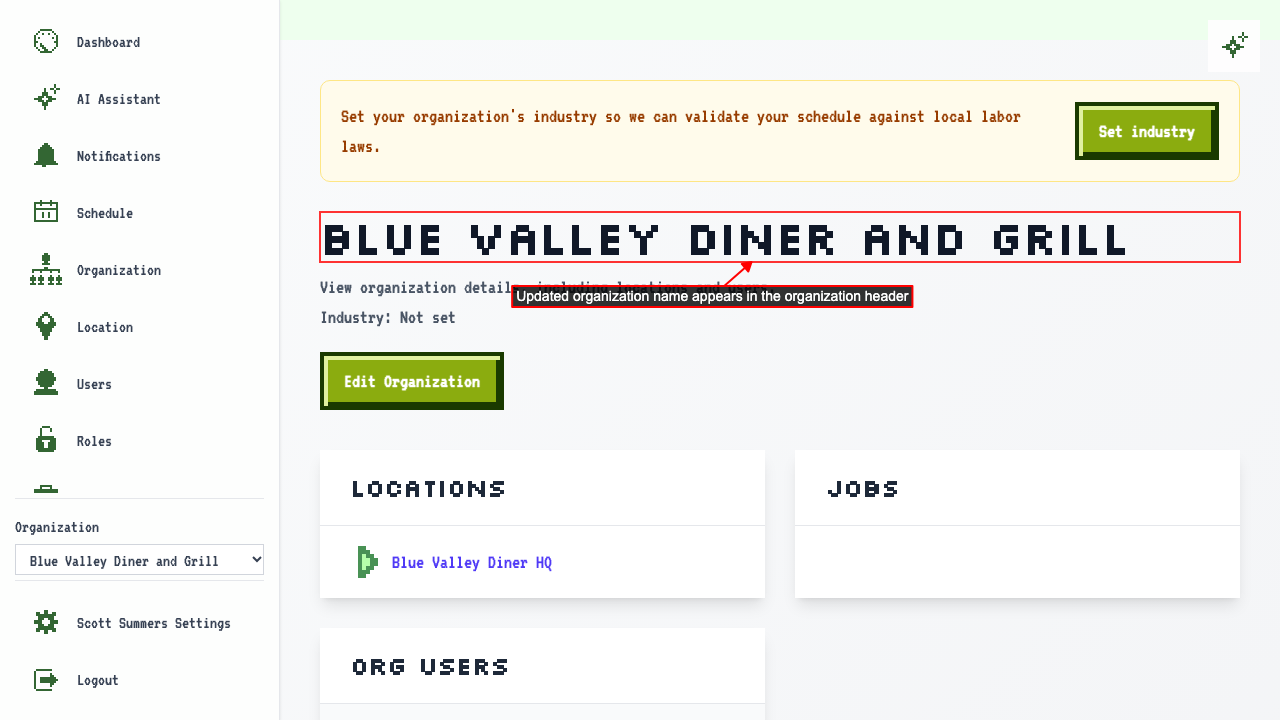
How to set your industry
Before it's set, the organization detail page shows a message to set the industry.
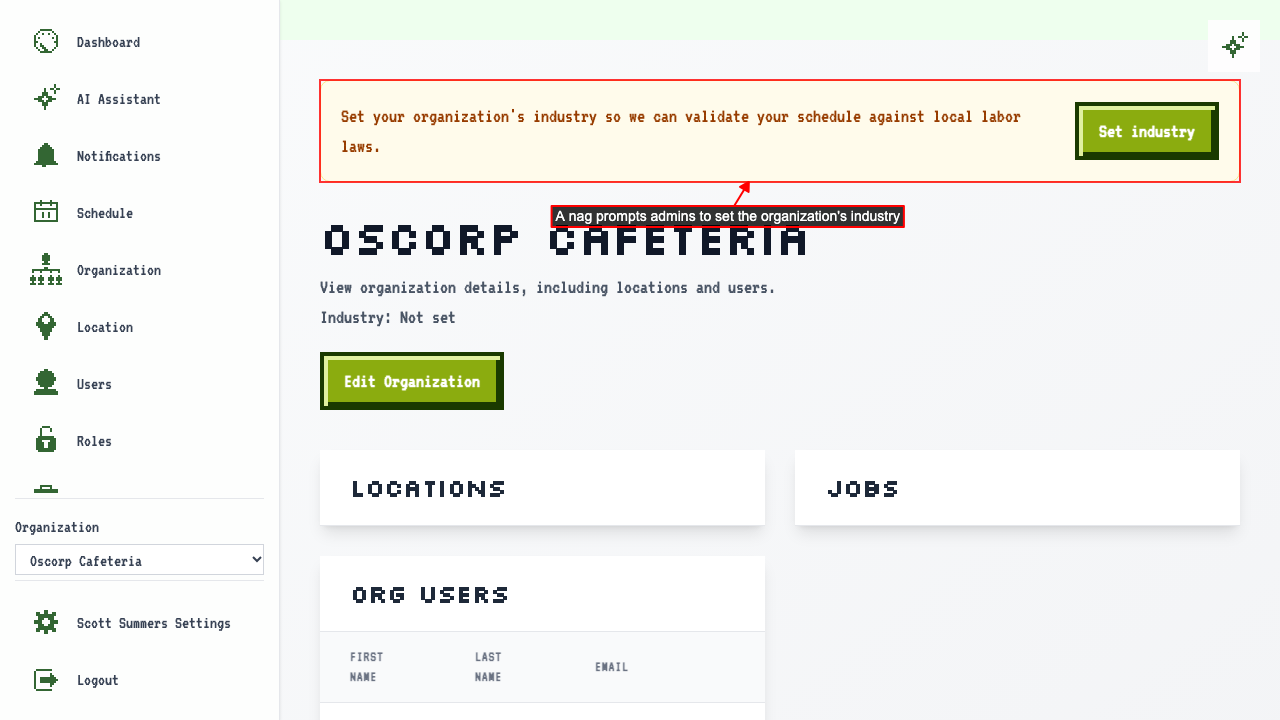 The Industry dropdown offers a choice of industries, used to determine which break-law carve-outs apply.
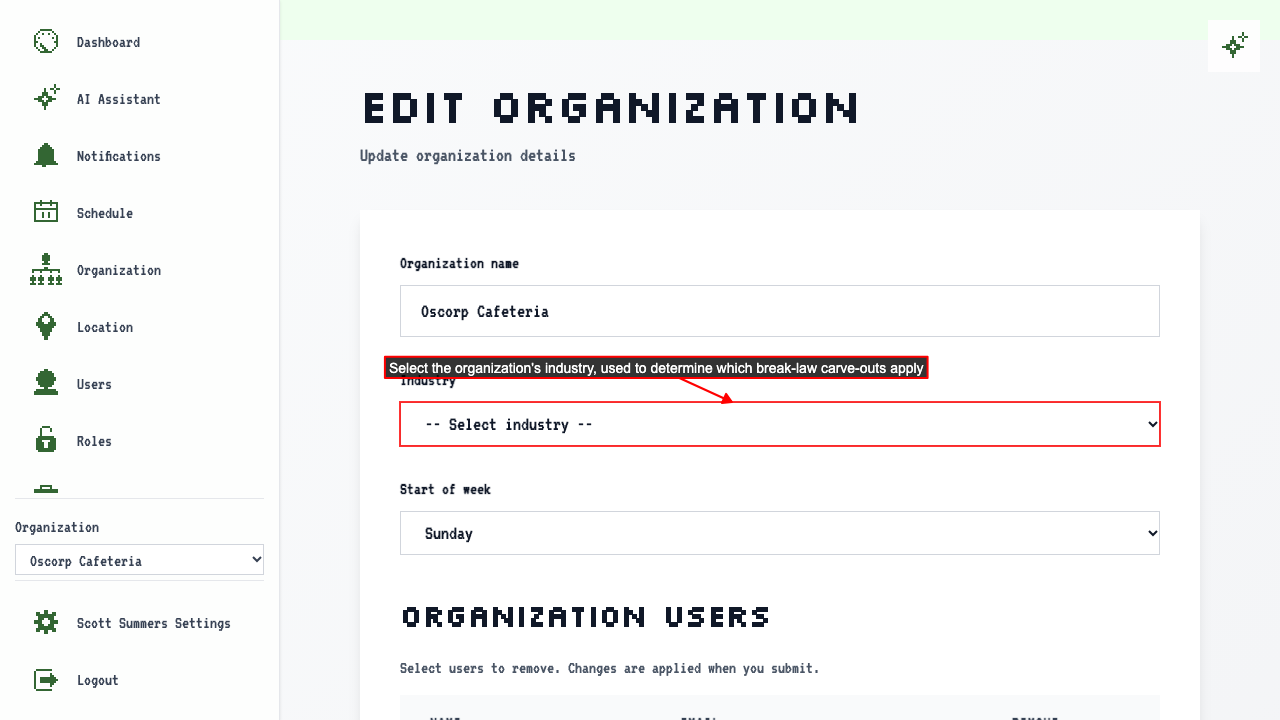
- Mercantile (Retail)
- Factory / Manufacturing
- Hotel
- Restaurant
- Health Care
- Other
Pick the industry that fits your business.
Submit the form to save it.
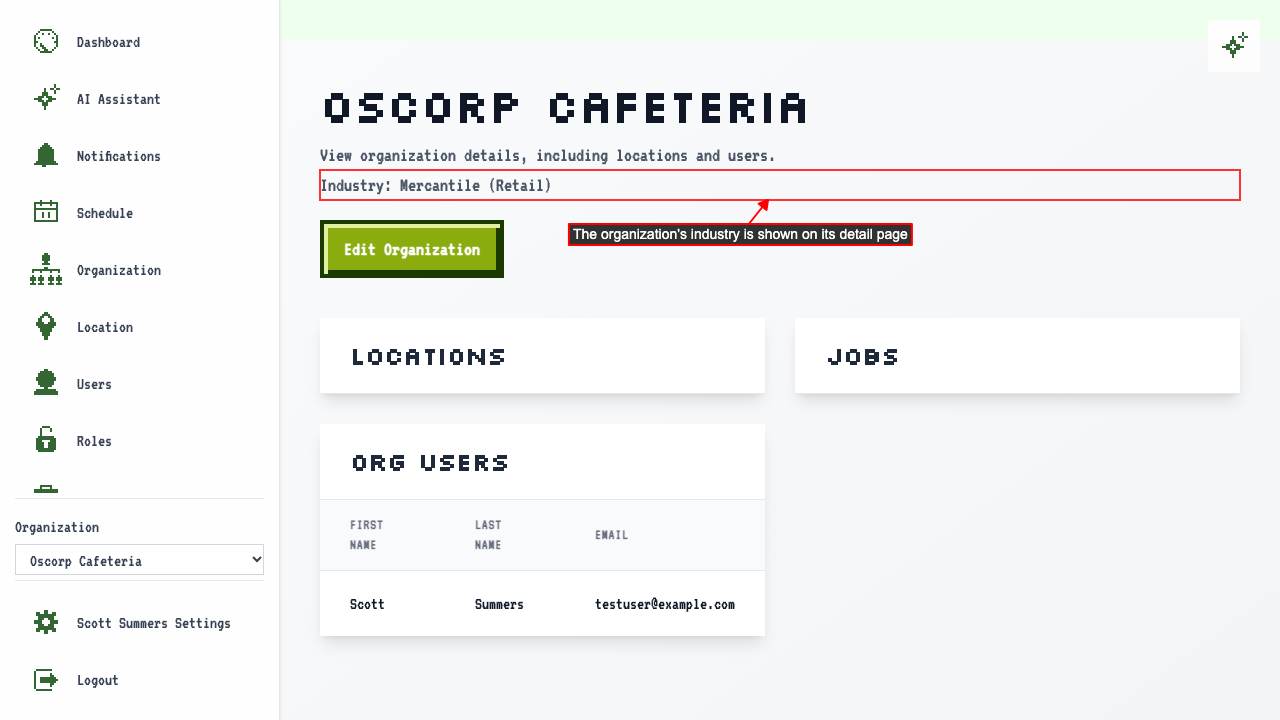
The organization detail page shows the selected industry and no longer asks you to set it.
How to change the start of the week
Go to the organization's edit page. The Start of week dropdown controls which day the schedule calendar's week begins on.
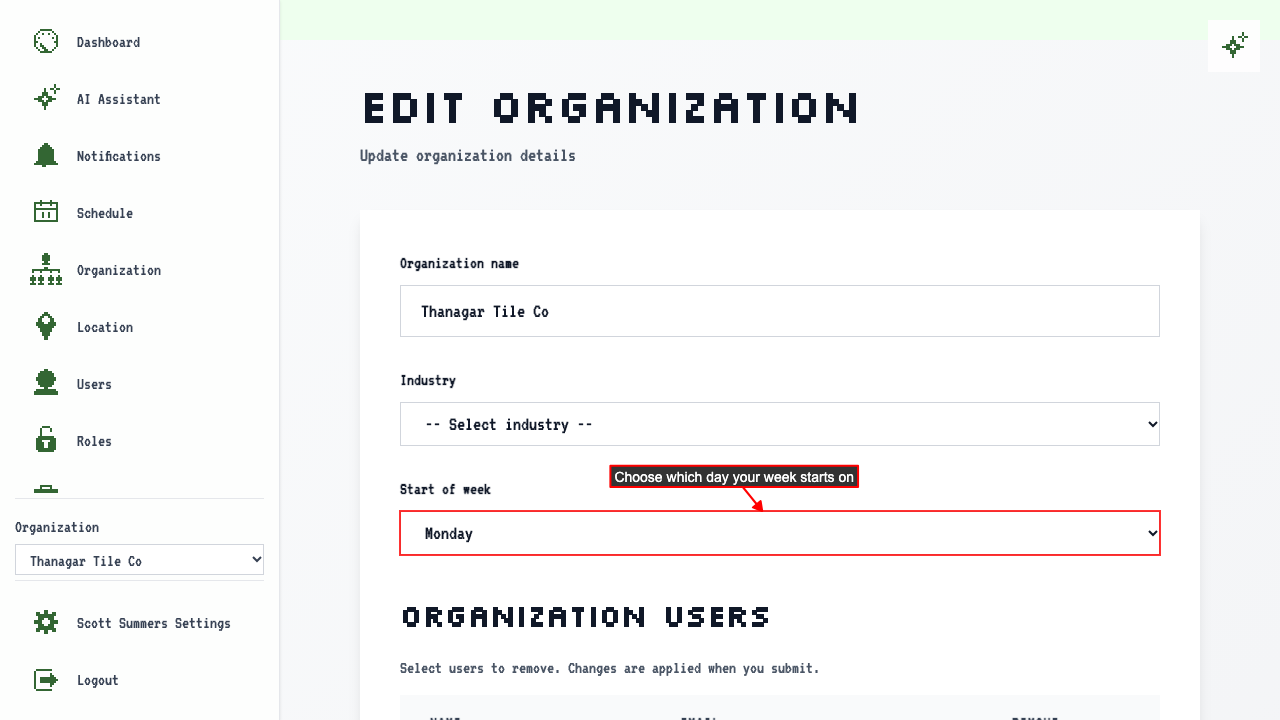 Select the day you want the schedule page to start on and submit.
In this example, the schedule's first column now starts on Monday instead of Sunday.
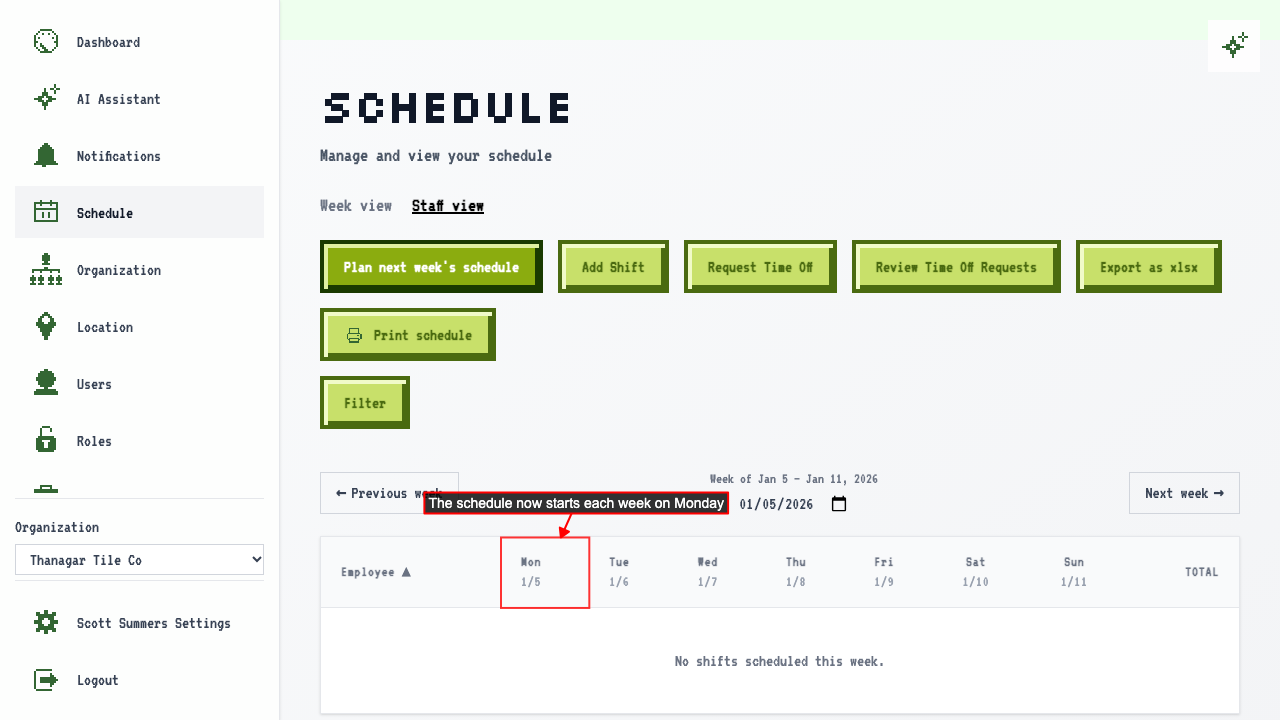 The week calendar starts on Monday too.
Planning next week's schedule also starts the week on Monday.